Smartwebs lets you void a transaction from four different screens. Each method produces the same accounting result, so choose the one that matches where you are working.
Which Option Should I Use?
Option 1 – Chart of Accounts
-
Where: Accounting > GL > Chart of Accounts
-
Best when: You are reconciling a bank GL account and can see the duplicate in the account ledger.
Option 2 – Bank Transactions
-
Where: Accounting > Banking
-
Best when: You are working from the bank account and want applied payments removed at the same time.
Option 3 – Deposits & Payments
-
Where: Accounting > Receivables > Deposits & Payments
-
Best when: The duplicate is a deposit, or a deposit batch, and you know the date it posted.
Option 4 – Homeowner Drawer
-
Where: Accounting > Receivables > Homeowners
-
Best when: The duplicate affects a single homeowner’s ledger.
Before You Begin
-
The void journal entry is created automatically in every method. You do not need to post a manual entry.
-
Match the void date to the original transaction date. Set the void date to the same date as the original payment or deposit.
-
Choose Void, not Reverse. Some Options menus show both; this guide uses Void throughout.
-
Applied payments are removed automatically. If the deposit was applied to charges, Smartwebs lists the affected charges before you confirm and removes those payment credits when the void is completed.
-
Enter a clear reason for the void (for example, “Duplicate of deposit 09/08/2026”) so the audit trail is easy to follow later.
Option 1 – Chart of Accounts
Navigation: Accounting > GL > Chart of Accounts
-
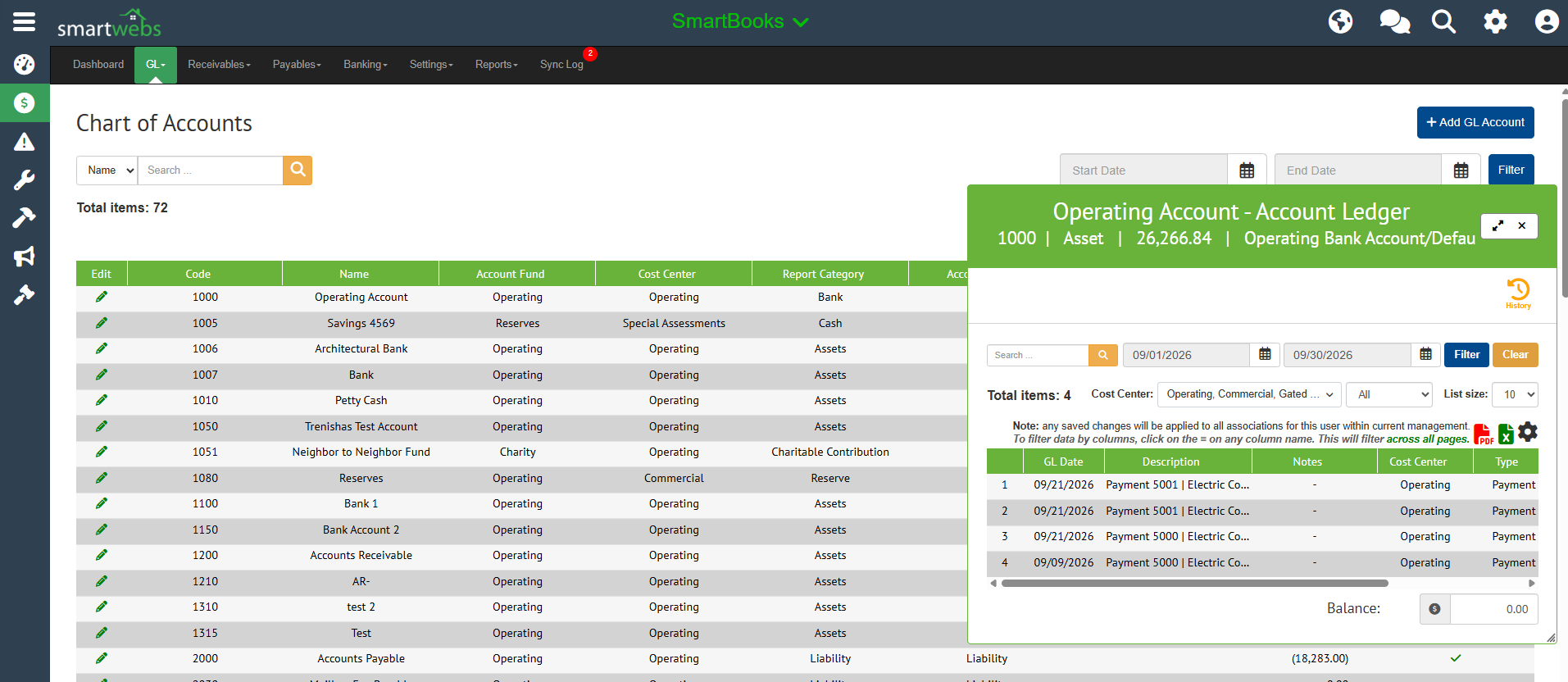
Go to Accounting > GL > Chart of Accounts, then select the bank GL account that contains the transaction you want to void.
-
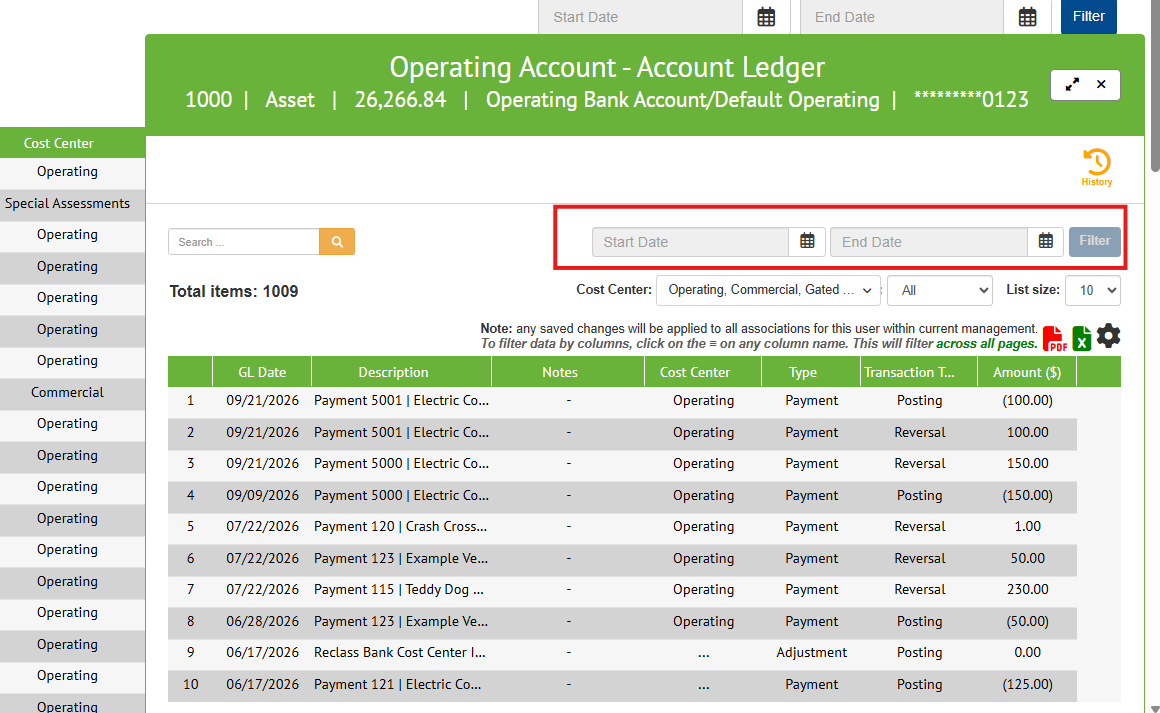
In the account ledger, clear the date filter, then select the transaction to void.
-
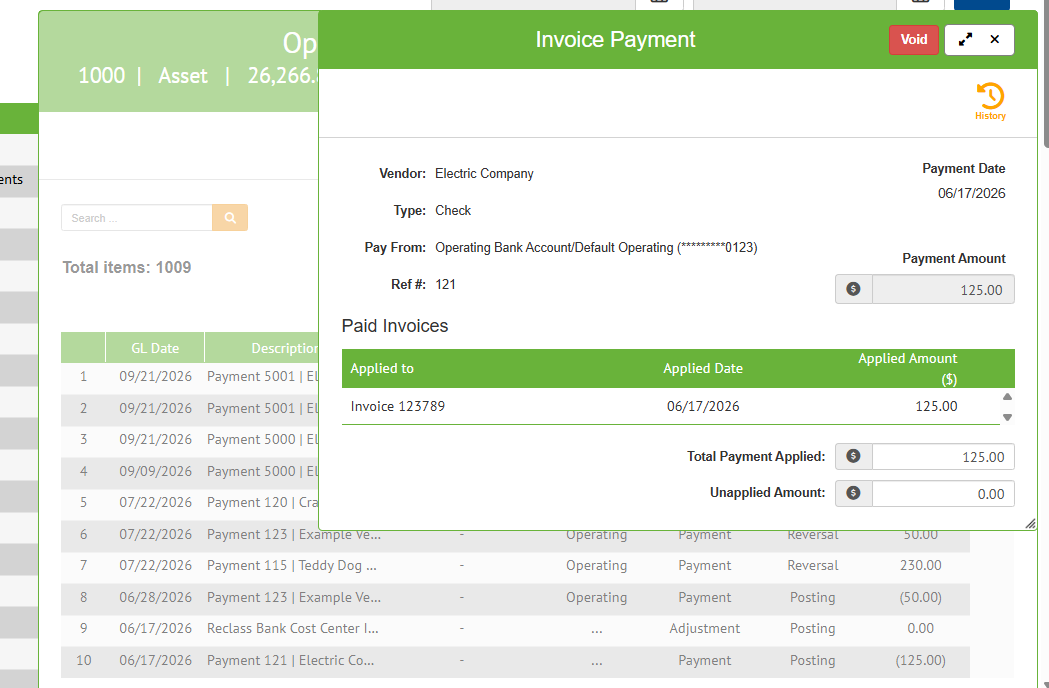
The journal entry drawer opens. Click Void in the upper-right corner (in some drawers this is under the Options drop-down).
-
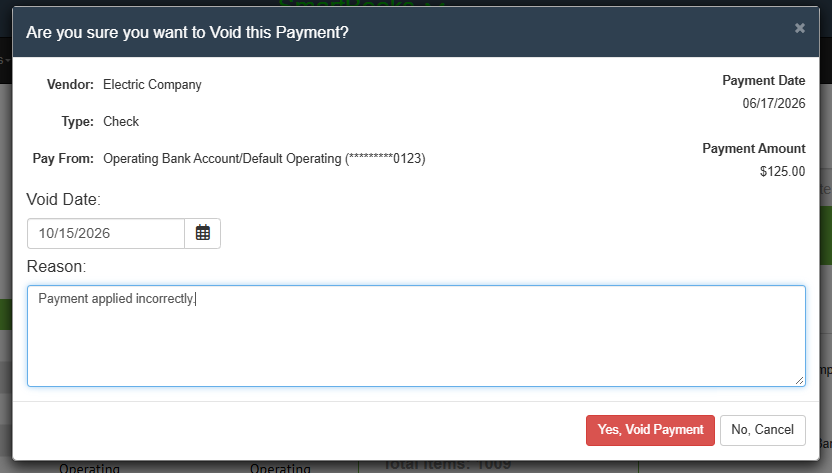
In the confirmation window, set the Void Date to the same date as the original payment or deposit, enter a Reason, and click Yes, Void Payment.
-
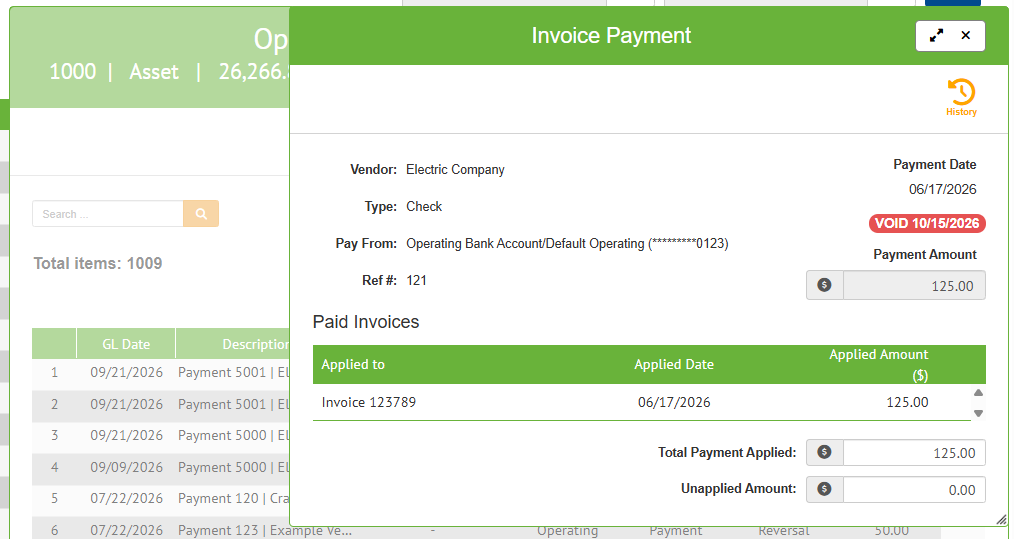
To confirm, go to Accounting > GL > Journal Entries. The transaction now appears as voided.

Option 2 – Bank Transactions
Navigation: Accounting > Banking
Voiding from the Bank Accounts screen creates the void journal entry and also removes the payment from any transactions it was applied to.
-
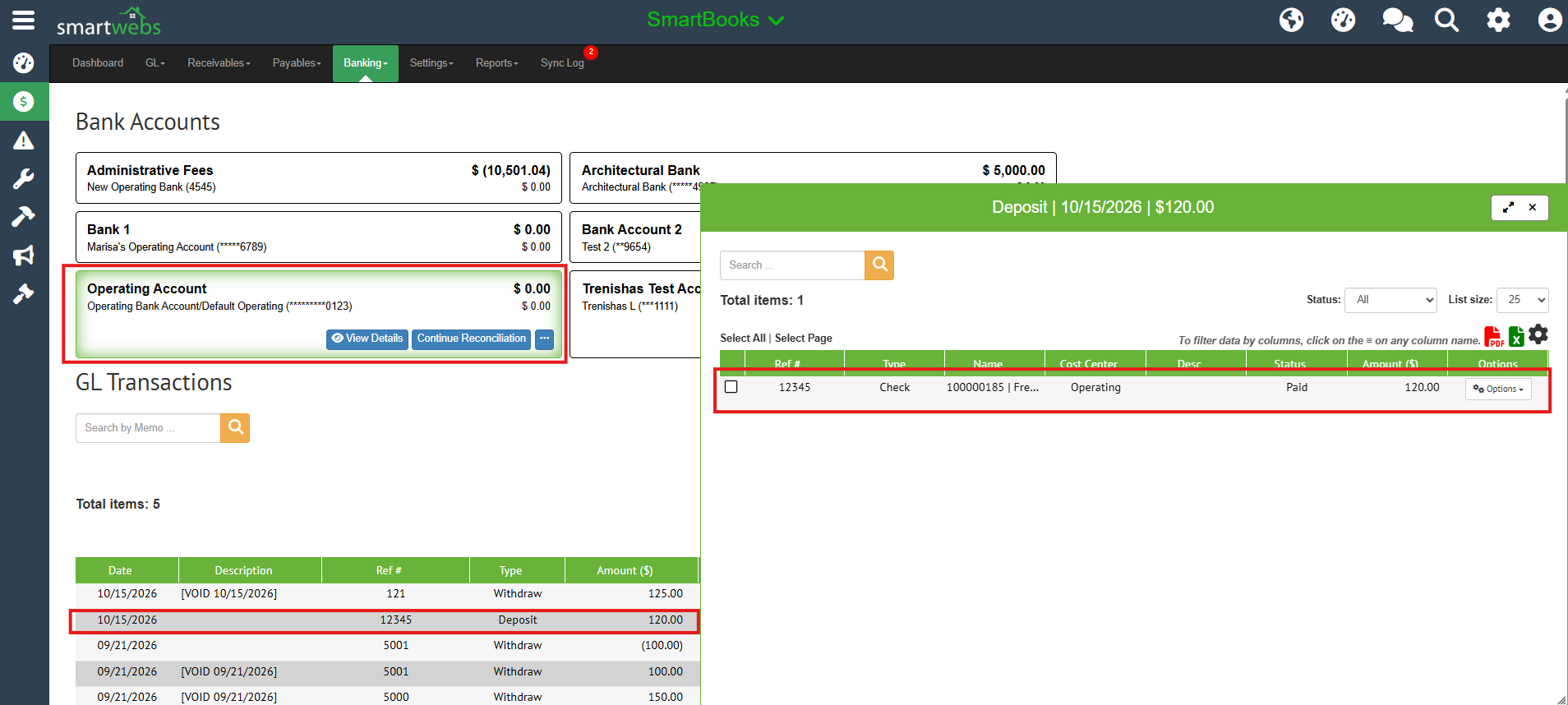
Go to Accounting > Banking and select the affected bank account.
-
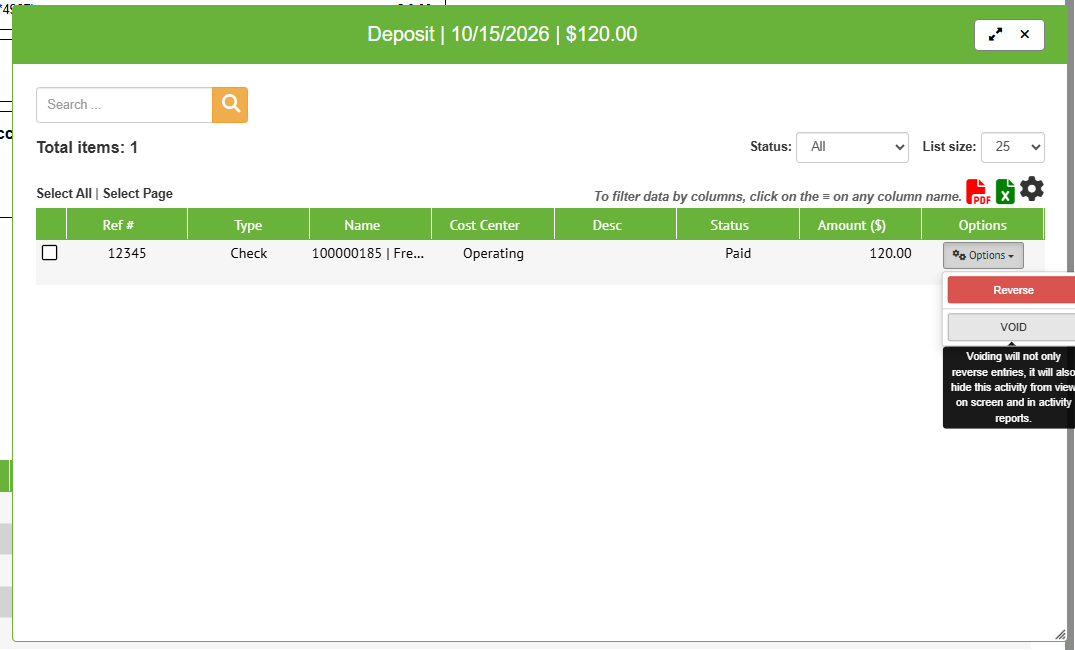
In GL Transactions, select the transaction. In the drawer that opens, click Options, then Void.
-
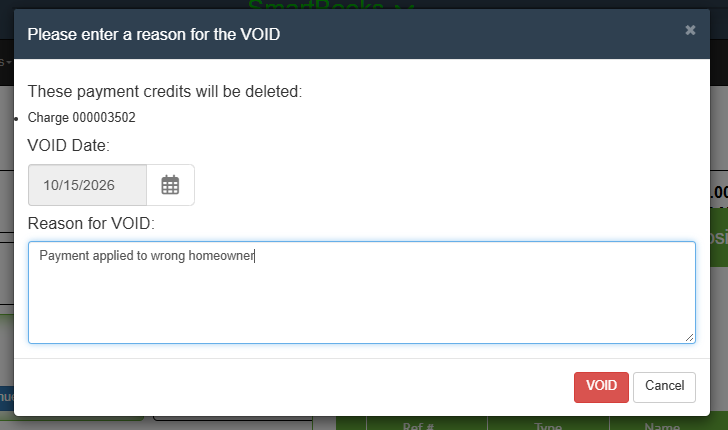
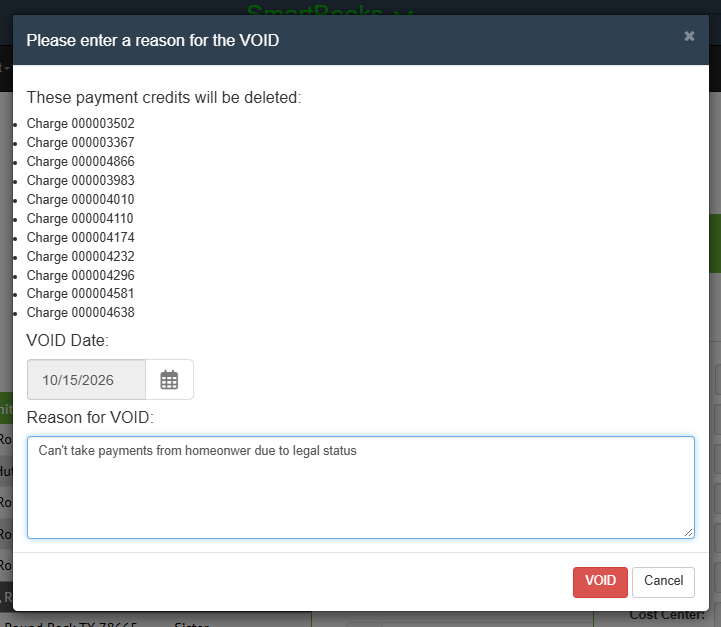
Review the list of charges whose payment credits will be deleted. Set the VOID Date, enter a Reason for VOID, and click VOID.
-
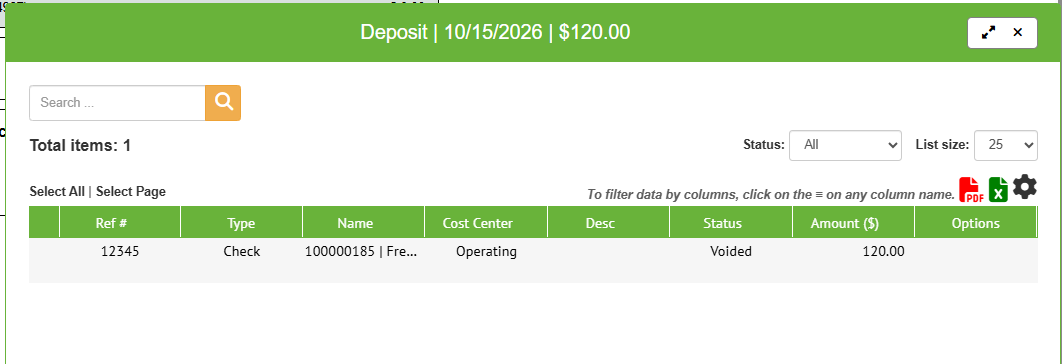
Confirm that the transaction status shows Voided and that the void journal entry has been created.

Option 3 – Deposits & Payments
Navigation: Accounting > Receivables > Deposits & Payments
Void a Single Deposit
-
Go to Accounting > Receivables > Deposits & Payments.
-
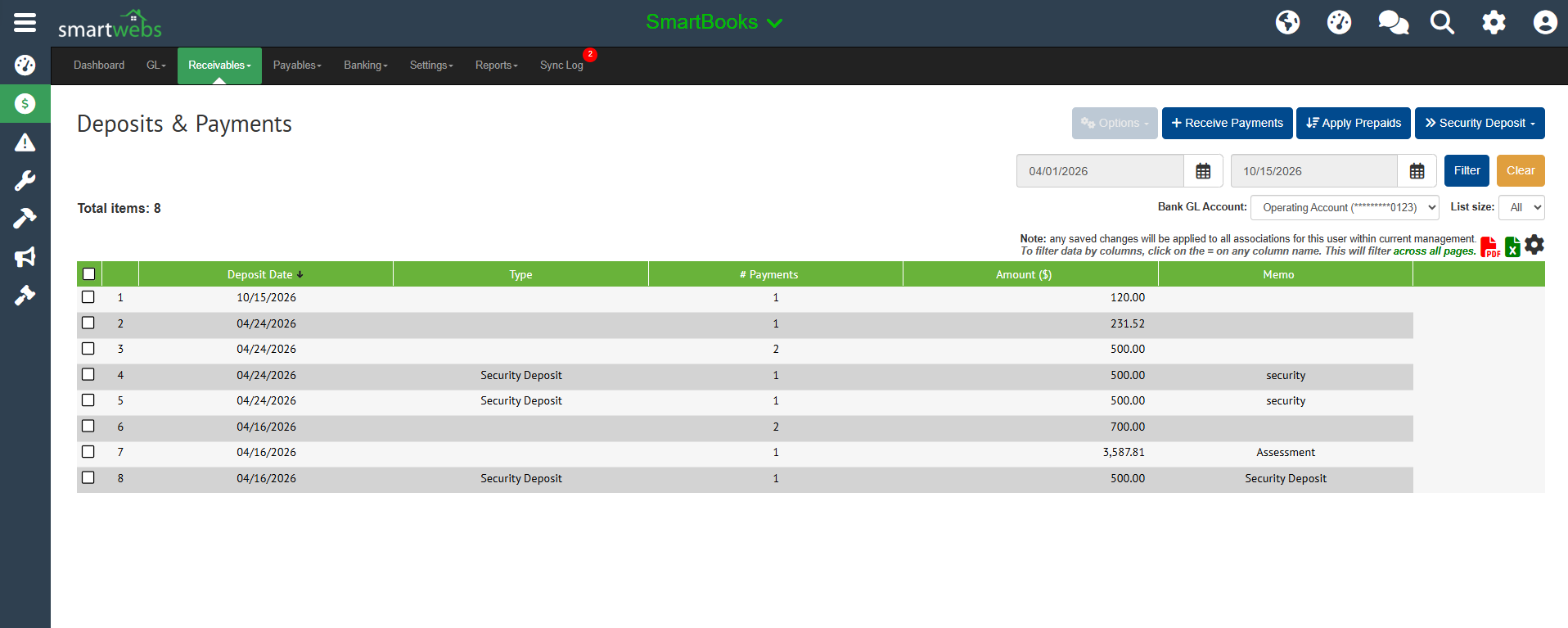
Use the date filter to show only the dates on which the duplicate deposit posted, then click Filter.
-
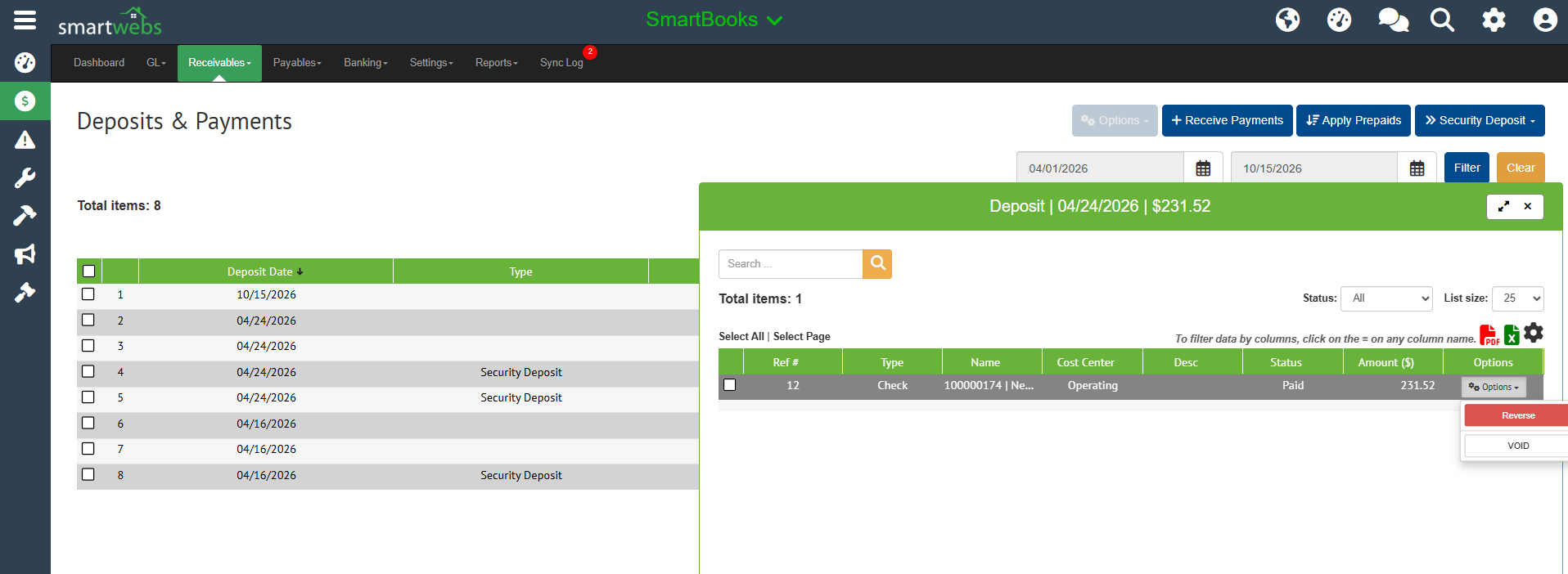
Select the transaction, click the Options drop-down, and choose Void.
-
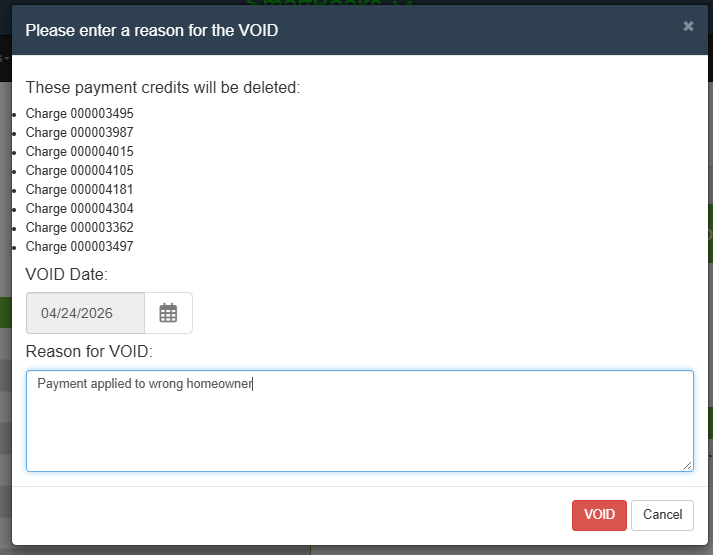
If the deposit was applied to charges, a notice lists the charges that will lose their payment credit. Set the VOID Date, enter a reason, and click VOID.
-
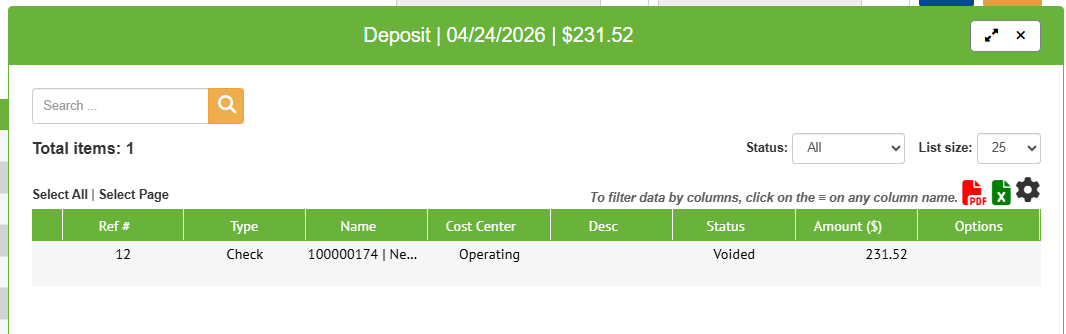
The status changes to Voided, all affected transactions are updated, and the void journal entries are created.
Voiding a Batch Deposit
If the deposit was recorded as a batch, void the whole batch at once.
-
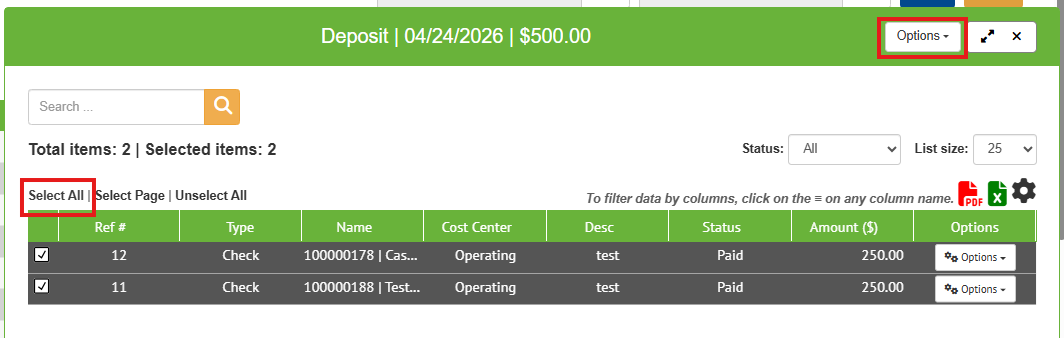
On the Deposits & Payments screen, select the entire batch, click Options, and choose Void.
-
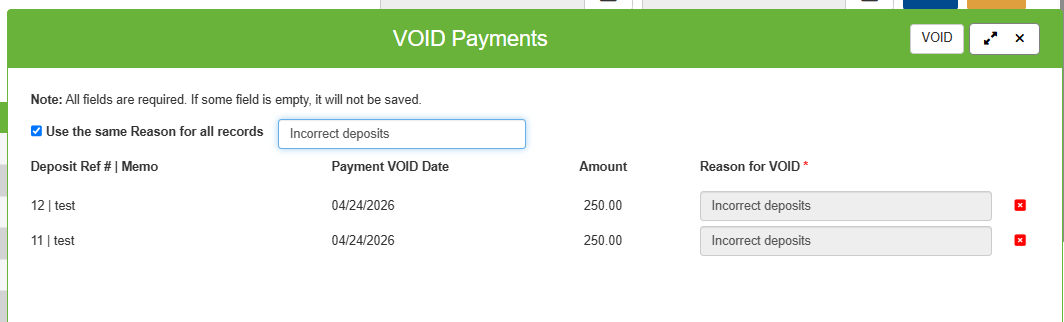
If the deposits were applied to charges, review the list of affected charges. If they were not applied, you will only be asked for a void reason.
-
Set the VOID Date, enter a reason, and click VOID. All affected transactions are updated.
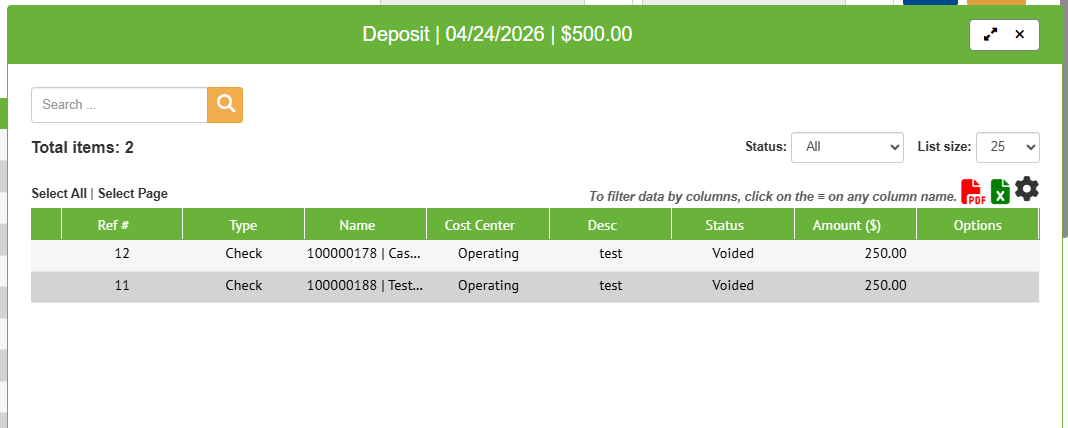
Option 4 – Homeowner Drawer
Navigation: Accounting > Receivables > Homeowners
-
Go to Accounting > Receivables > Homeowners, then search for and select the homeowner account.
-
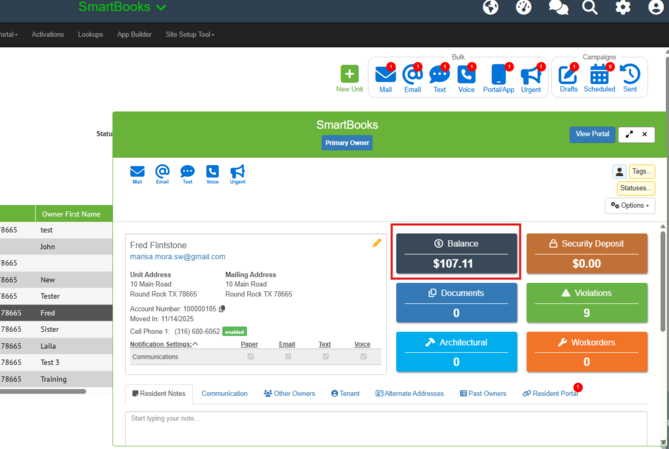
In the homeowner drawer, click the Balance tile.
-
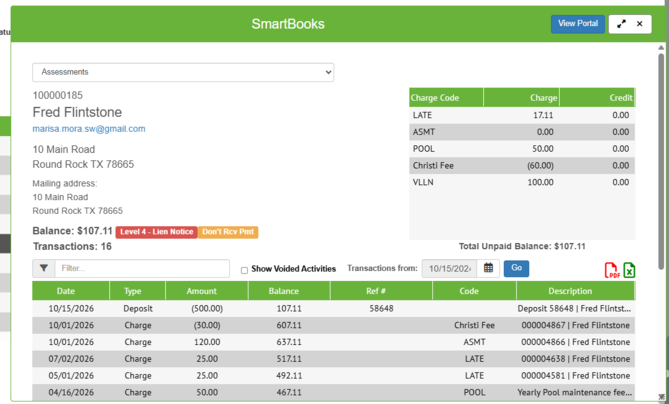
The homeowner ledger opens. Select the duplicate transaction you want to void.
-
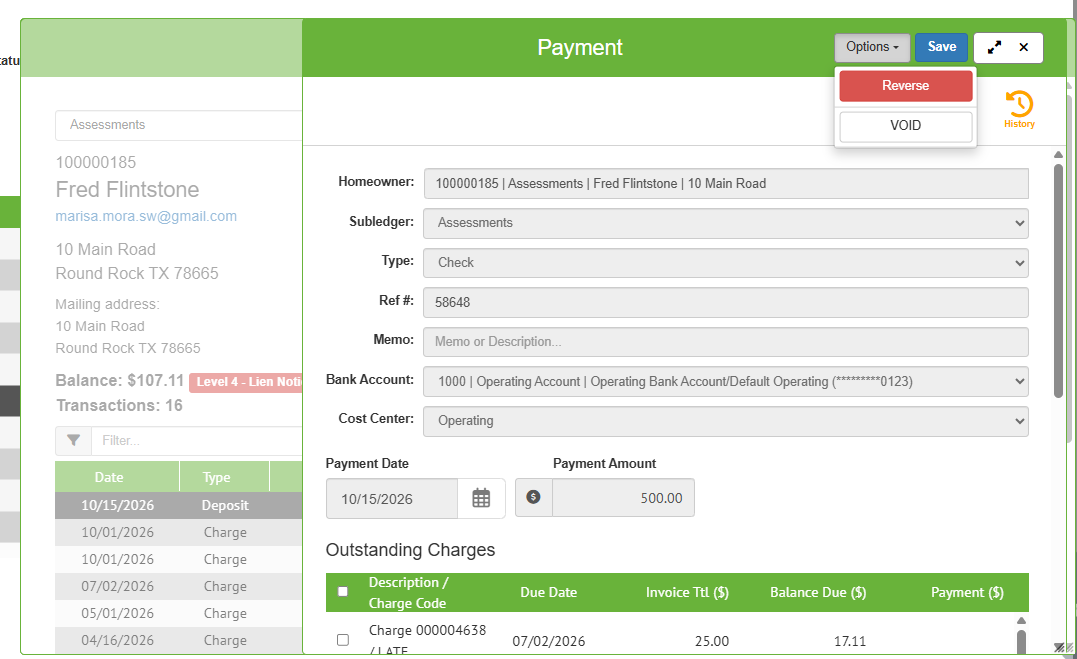
In the upper-right corner, click Options, then VOID.
-
Review the charge that will lose its payment credit, enter a reason, and click VOID.
-
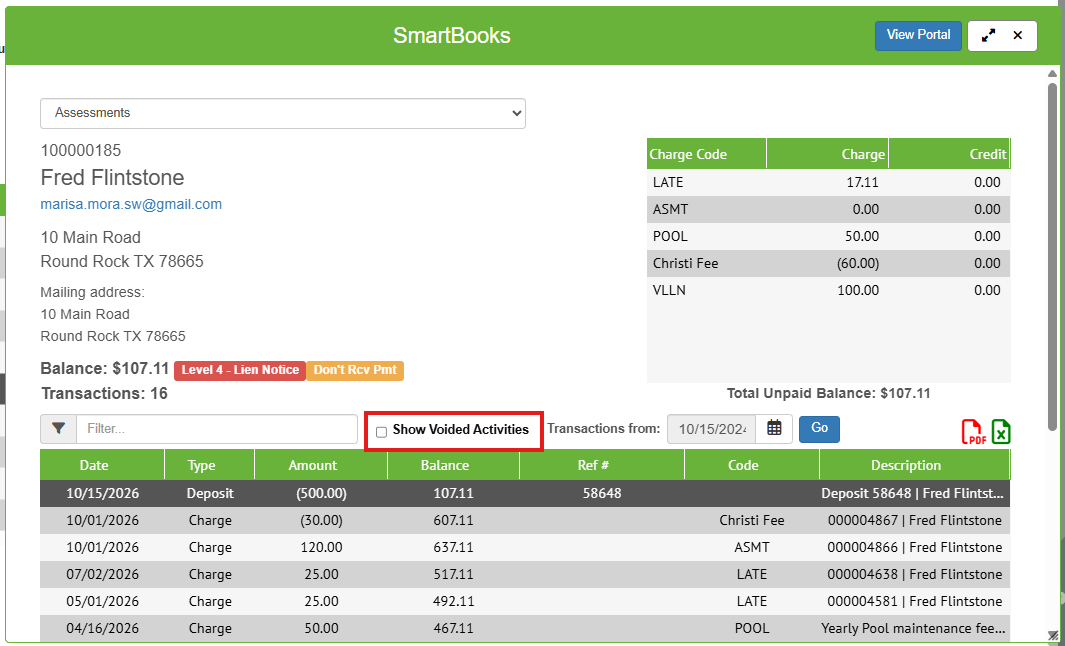
Voided transactions are hidden from the ledger by default. To view them, check Show Voided Activities.