
Please refer to the User Guide - Financial Report Custom Configuration
for directions on creating any custom Accounting reports you would like to include in this packet.
How to Create a Board or Executive or Resident Report Packet
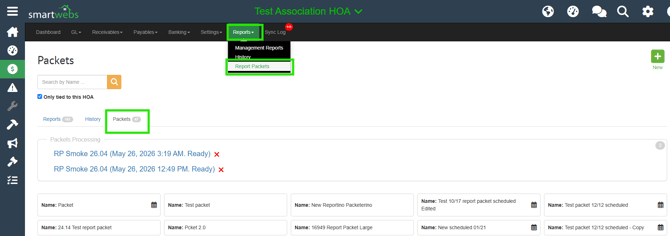
1. Navigate to Accounting > Reports > Packets and click New.
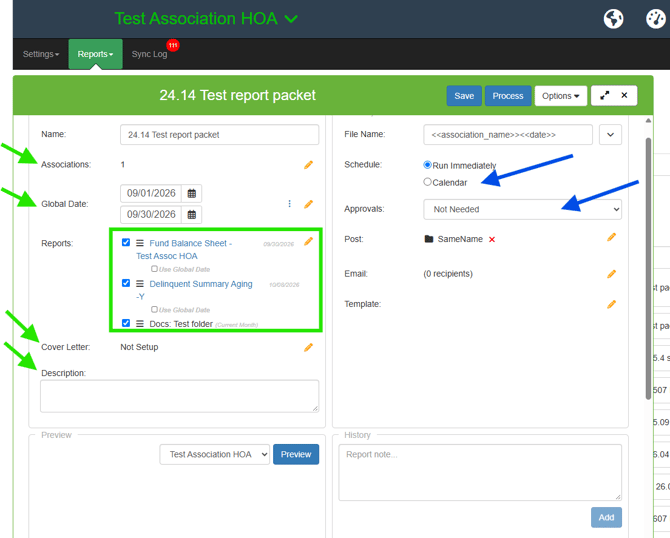
2. Select the reports and documents you want to include in the packet.
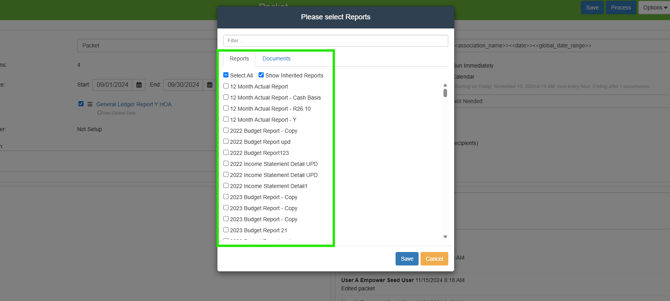
To include reports from other Smartwebs modules:
Run the applicable report from the relevant module (Violations, ARC, or Work Orders) and save it to your Documents folder under Company > Documents.
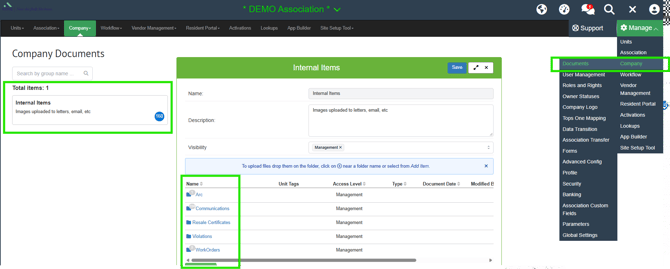
You can then include the saved document in your packet.
3. Arrange the reports and documents in the desired order, then add the packet details and description.
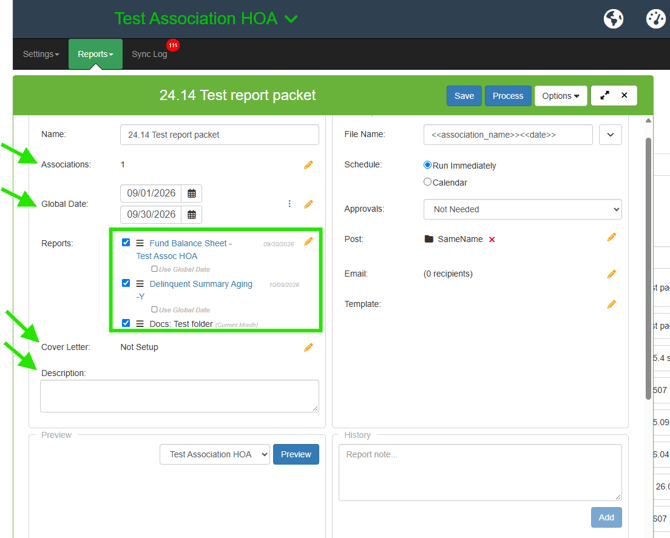
4. Save and preview the packet. Configure scheduling and approval levels as needed.
If the Approval Engine is enabled, you can add the applicable approval levels.
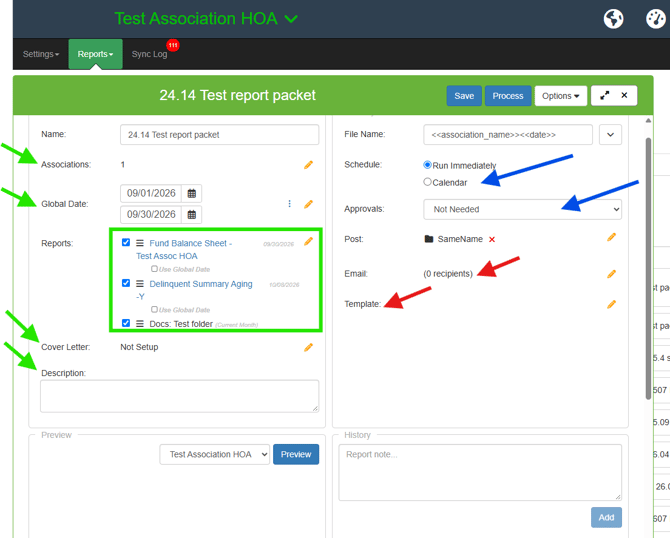
5. Configure email delivery and process the packet.
If desired, create or select an email template, add the recipients, and click Process to generate and distribute the packet.
6. Repeat as needed to create packets for custom audiences.
Repeat this process for as many variations of customized report packets you would like to send. You can create multiple packets for distinct audiences and name them accordingly, such as:
- Board Month-End Report Packet
- Executive Report Packet
- Resident Report Packet
End of User Guide