---
title: User Guide - Lifestyle - Managing Association Documents
description: "You can manage your documents and folders through two platforms: your Association Website (while logged in as an Admin) or the Smartwebs Office Site. Both use the same permission settings.\n\nOption 1: Association Website\nLog in to your website using your Smartwebs credentials.\n\nTo create a group: Click Add New Group.\n\nTo add content: Click on a Group, then select Add Item to upload documents, create folders, or add links.\n\nOption 2: Smartwebs Office Site\nLog in to office.smartwebs.com.\nNavigate to Manage > Association > Documents.\nTo create a category: Click Add New Group.\n\nTo add content: Click on a Group, then select Add Item.\n\nVisibility Settings\n\nWhen creating a Group, you must select a visibility level to control who can view the content:\n\nLevel\n\n \n\nWho can see it?\n\n\n\n\nPublic\n\n \n\nAnyone visiting the website.\n\n\n\n\nResident\n\n \n\nLogged-in users with the Resident role.\n\n\n\n\nBoard\n\n \n\nLogged-in users with the Board role.\n\n\n\n\nVendor\n\n \n\nLogged-in users with the Vendor role.\n\n\n\n\nManagement\n\n \n\nLogged-in users with the Management role."
---
[Skip to content](https://solutions.smartwebs.com/en-us/smartwebs-solutions/user-guide-managing-association-documents#main-content)
English - United States
Show submenu for translations

- [Smartwebs Solutions Home](https://solutions.smartwebs.com/)
- [Contact Us](https://share.hsforms.com/2VBrljHAiSeCkcUy_-IEe_Aq0yoc)
- [Manage Tickets](https://support.smartwebs.com/tickets-view)
Open main navigation
Close main navigation
- [Smartwebs Solutions Home](https://solutions.smartwebs.com/)
- [Contact Us](https://share.hsforms.com/2VBrljHAiSeCkcUy_-IEe_Aq0yoc)
- [Manage Tickets](https://support.smartwebs.com/tickets-view)
- English - United States
Show submenu for translations
- [Contact Us](https://share.hsforms.com/2VBrljHAiSeCkcUy_-IEe_Aq0yoc)
[Contact Us](https://share.hsforms.com/2VBrljHAiSeCkcUy_-IEe_Aq0yoc)
How can we help you?
- There are no suggestions because the search field is empty.
1. [Smartwebs Solutions](https://solutions.smartwebs.com/en-us/smartwebs-solutions?hsLang=en-us)
2. [Lifestyle](https://solutions.smartwebs.com/en-us/smartwebs-solutions/lifestyle?hsLang=en-us)
July 21, 2026
# User Guide - Lifestyle - Managing Association Documents
## Note: The functionality described in this article is part of an optional Smartwebs add-on product: Lifestyle which may not be available in your environment. If you do not see these features and are interested in enabling them, please contact Support to request a product demo!
You can manage your documents and folders through two platforms: your Association Website (while logged in as an Admin) or the Smartwebs Office Site. Both use the same permission settings.
### Option 1: Association Website
1. Log in to your website using your Smartwebs credentials.
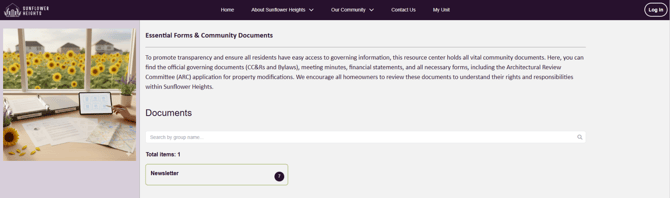
2. To create a group: Click Add New Group.

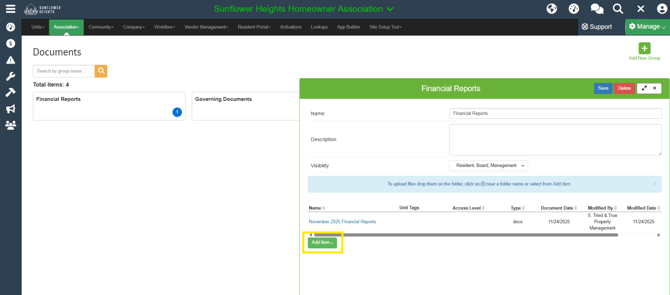
3. To add content: Click on a Group, then select Add Item to upload documents, create folders, or add links.
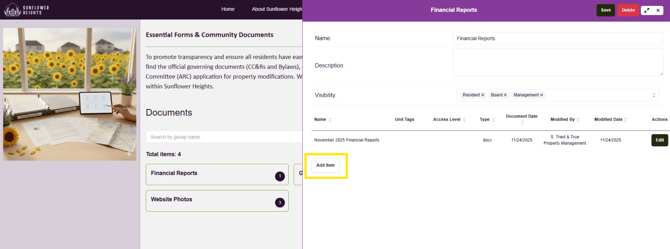
### Option 2: Smartwebs Office Site
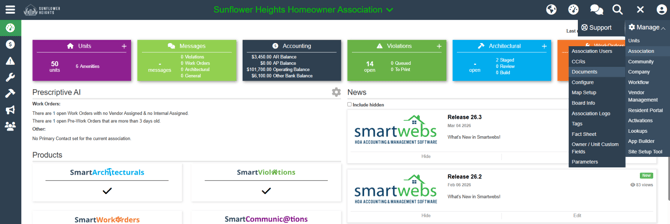
1. Log in to [office.smartwebs.com](https://office.smartwebs.com).
2. Navigate to Manage > Association > Documents.
3. To create a category: Click Add New Group.
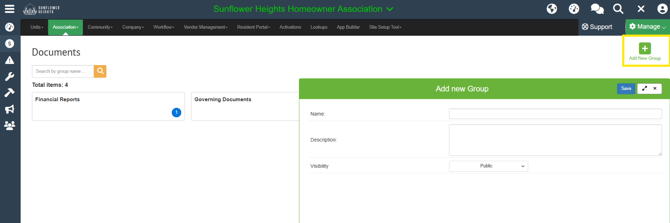
4. To add content: Click on a Group, then select Add Item.
### Visibility Settings
When creating a Group, you must select a visibility level to control who can view the content:
| **Level** | **Who can see it?** |
| --- | --- |
| **Public** | Anyone visiting the website. |
| **Resident** | Logged-in users with the Resident role. |
| **Board** | Logged-in users with the Board role. |
| **Vendor** | Logged-in users with the Vendor role. |
| **Management** | Logged-in users with the Management role. |
- [Accounting](https://solutions.smartwebs.com/en-us/smartwebs-solutions/accounting?hsLang=en-us#main-content)
- [1099's](https://solutions.smartwebs.com/en-us/smartwebs-solutions/accounting?hsLang=en-us#1099s)
- [General](https://solutions.smartwebs.com/en-us/smartwebs-solutions/accounting?hsLang=en-us#general)
- [General Ledger](https://solutions.smartwebs.com/en-us/smartwebs-solutions/accounting?hsLang=en-us#general-ledger)
- [Receivables](https://solutions.smartwebs.com/en-us/smartwebs-solutions/accounting?hsLang=en-us#receivables)
- [Payables](https://solutions.smartwebs.com/en-us/smartwebs-solutions/accounting?hsLang=en-us#payables)
- [Banking & Reconciliation](https://solutions.smartwebs.com/en-us/smartwebs-solutions/accounting?hsLang=en-us#banking-reconciliation)
- [Configuration & Setup](https://solutions.smartwebs.com/en-us/smartwebs-solutions/accounting?hsLang=en-us#configuration-setup)
- [Merchant Services](https://solutions.smartwebs.com/en-us/smartwebs-solutions/accounting?hsLang=en-us#merchant-services)
- [Reports](https://solutions.smartwebs.com/en-us/smartwebs-solutions/accounting?hsLang=en-us#reports)
- [Billing](https://solutions.smartwebs.com/en-us/smartwebs-solutions/accounting?hsLang=en-us#billing)
- [Payments & Deposits](https://solutions.smartwebs.com/en-us/smartwebs-solutions/accounting?hsLang=en-us#payments-deposits)
- [Homeowner Charges](https://solutions.smartwebs.com/en-us/smartwebs-solutions/accounting?hsLang=en-us#homeowner-charges)
- [Statements](https://solutions.smartwebs.com/en-us/smartwebs-solutions/accounting?hsLang=en-us#statements)
- [Collections](https://solutions.smartwebs.com/en-us/smartwebs-solutions/accounting?hsLang=en-us#collections)
- [Security Deposits](https://solutions.smartwebs.com/en-us/smartwebs-solutions/accounting?hsLang=en-us#security-deposits)
- [Administration](https://solutions.smartwebs.com/en-us/smartwebs-solutions/accounting?hsLang=en-us#administration)
- [Administrative](https://solutions.smartwebs.com/en-us/smartwebs-solutions/administrative?hsLang=en-us#main-content)
- [Owner Unit Management](https://solutions.smartwebs.com/en-us/smartwebs-solutions/administrative?hsLang=en-us#owner-unit-management)
- [User Management](https://solutions.smartwebs.com/en-us/smartwebs-solutions/administrative?hsLang=en-us#user-management)
- [Roles and Rights](https://solutions.smartwebs.com/en-us/smartwebs-solutions/administrative?hsLang=en-us#roles-and-rights)
- [Email Notification Preferences](https://solutions.smartwebs.com/en-us/smartwebs-solutions/administrative?hsLang=en-us#email-notification-preferences)
- [Satellite Offices](https://solutions.smartwebs.com/en-us/smartwebs-solutions/administrative?hsLang=en-us#satellite-offices)
- [Reporting](https://solutions.smartwebs.com/en-us/smartwebs-solutions/administrative?hsLang=en-us#reporting)
- [Document Management](https://solutions.smartwebs.com/en-us/smartwebs-solutions/administrative?hsLang=en-us#document-management)
- [Security](https://solutions.smartwebs.com/en-us/smartwebs-solutions/administrative?hsLang=en-us#security)
- [Letter Parameters](https://solutions.smartwebs.com/en-us/smartwebs-solutions/administrative?hsLang=en-us#letter-parameters)
- [Zero Touch Mailing Service](https://solutions.smartwebs.com/en-us/smartwebs-solutions/administrative?hsLang=en-us#zero-touch-mailing-service)
- [Association Setup](https://solutions.smartwebs.com/en-us/smartwebs-solutions/administrative?hsLang=en-us#association-setup)
- [Vendor Management](https://solutions.smartwebs.com/en-us/smartwebs-solutions/administrative?hsLang=en-us#vendor-management)
- [Email and Custom Domains](https://solutions.smartwebs.com/en-us/smartwebs-solutions/administrative?hsLang=en-us#email-and-custom-domains)
- [Data Storage](https://solutions.smartwebs.com/en-us/smartwebs-solutions/administrative?hsLang=en-us#data-storage)
- [Support](https://solutions.smartwebs.com/en-us/smartwebs-solutions/administrative?hsLang=en-us#support)
- [Preferences](https://solutions.smartwebs.com/en-us/smartwebs-solutions/administrative?hsLang=en-us#preferences)
- [HOA and Data Transfers](https://solutions.smartwebs.com/en-us/smartwebs-solutions/administrative?hsLang=en-us#hoa-and-data-transfers)
- [Architecturals](https://solutions.smartwebs.com/en-us/smartwebs-solutions/architecturals?hsLang=en-us#main-content)
- [Committee Member Guides](https://solutions.smartwebs.com/en-us/smartwebs-solutions/architecturals?hsLang=en-us#committee-member-guides)
- [Board Member Guides](https://solutions.smartwebs.com/en-us/smartwebs-solutions/architecturals?hsLang=en-us#board-member-guides)
- [Online Submit Forms](https://solutions.smartwebs.com/en-us/smartwebs-solutions/architecturals?hsLang=en-us#online-submit-forms)
- [Arc Project Notifications](https://solutions.smartwebs.com/en-us/smartwebs-solutions/architecturals?hsLang=en-us#arc-project-notifications)
- [Arc CCRs and Project Types](https://solutions.smartwebs.com/en-us/smartwebs-solutions/architecturals?hsLang=en-us#arc-ccrs-and-project-types)
- [Arc Project Statuses and Expirations](https://solutions.smartwebs.com/en-us/smartwebs-solutions/architecturals?hsLang=en-us#arc-project-statuses-and-expirations)
- [Arc Letters](https://solutions.smartwebs.com/en-us/smartwebs-solutions/architecturals?hsLang=en-us#arc-letters)
- [Arc Admin, Settings, and Reports](https://solutions.smartwebs.com/en-us/smartwebs-solutions/architecturals?hsLang=en-us#arc-admin-settings-and-reports)
- [Arc Projects](https://solutions.smartwebs.com/en-us/smartwebs-solutions/architecturals?hsLang=en-us#arc-projects)
- [Arc Project Applications](https://solutions.smartwebs.com/en-us/smartwebs-solutions/architecturals?hsLang=en-us#arc-project-applications)
- [Board and Committee Admin](https://solutions.smartwebs.com/en-us/smartwebs-solutions/board-and-committee-admin?hsLang=en-us#main-content)
- [Meeting Minutes](https://solutions.smartwebs.com/en-us/smartwebs-solutions/board-and-committee-admin?hsLang=en-us#meeting-minutes)
- [Communications](https://solutions.smartwebs.com/en-us/smartwebs-solutions/communications?hsLang=en-us#main-content)
- [Mass Communications](https://solutions.smartwebs.com/en-us/smartwebs-solutions/communications?hsLang=en-us#mass-communications)
- [Workflow](https://solutions.smartwebs.com/en-us/smartwebs-solutions/communications?hsLang=en-us#workflow)
- [Security](https://solutions.smartwebs.com/en-us/smartwebs-solutions/communications?hsLang=en-us#security)
- [General](https://solutions.smartwebs.com/en-us/smartwebs-solutions/general?hsLang=en-us#main-content)
- [Frequently Asked Questions](https://solutions.smartwebs.com/en-us/smartwebs-solutions/general?hsLang=en-us#frequently-asked-questions)
- [Lifestyle](https://solutions.smartwebs.com/en-us/smartwebs-solutions/lifestyle?hsLang=en-us)
- [Mobile Applications](https://solutions.smartwebs.com/en-us/smartwebs-solutions/mobile-applications?hsLang=en-us#main-content)
- [Offline App](https://solutions.smartwebs.com/en-us/smartwebs-solutions/mobile-applications?hsLang=en-us#offline-app)
- [Portal App](https://solutions.smartwebs.com/en-us/smartwebs-solutions/mobile-applications?hsLang=en-us#portal-app)
- [Mobile Online App](https://solutions.smartwebs.com/en-us/smartwebs-solutions/mobile-applications?hsLang=en-us#mobile-online-app)
- [iOS Devices](https://solutions.smartwebs.com/en-us/smartwebs-solutions/mobile-applications?hsLang=en-us#ios-devices)
- [Android devices](https://solutions.smartwebs.com/en-us/smartwebs-solutions/mobile-applications?hsLang=en-us#android-devices)
- [FAQ](https://solutions.smartwebs.com/en-us/smartwebs-solutions/mobile-applications?hsLang=en-us#faq)
- [Release Notes](https://solutions.smartwebs.com/en-us/smartwebs-solutions/release-notes?hsLang=en-us#main-content)
- [Office Site Releases](https://solutions.smartwebs.com/en-us/smartwebs-solutions/release-notes?hsLang=en-us#office-site-releases)
- [Application Releases](https://solutions.smartwebs.com/en-us/smartwebs-solutions/release-notes?hsLang=en-us#application-releases)
- [Resident Portal](https://solutions.smartwebs.com/en-us/smartwebs-solutions/resident-portal?hsLang=en-us#main-content)
- [Resident Guides](https://solutions.smartwebs.com/en-us/smartwebs-solutions/resident-portal?hsLang=en-us#resident-guides)
- [Admin Guides](https://solutions.smartwebs.com/en-us/smartwebs-solutions/resident-portal?hsLang=en-us#admin-guides)
- [Violations](https://solutions.smartwebs.com/en-us/smartwebs-solutions/violations?hsLang=en-us#main-content)
- [Frequently Asked Questions](https://solutions.smartwebs.com/en-us/smartwebs-solutions/violations?hsLang=en-us#frequently-asked-questions)
- [Violation Letters](https://solutions.smartwebs.com/en-us/smartwebs-solutions/violations?hsLang=en-us#violation-letters)
- [Violation CCRs](https://solutions.smartwebs.com/en-us/smartwebs-solutions/violations?hsLang=en-us#violation-ccrs)
- [Violation Policies](https://solutions.smartwebs.com/en-us/smartwebs-solutions/violations?hsLang=en-us#violation-policies)
- [Mapping Units in Smartwebs](https://solutions.smartwebs.com/en-us/smartwebs-solutions/violations?hsLang=en-us#mapping-units-in-smartwebs)
- [Setup and Configuration](https://solutions.smartwebs.com/en-us/smartwebs-solutions/violations?hsLang=en-us#setup-and-configuration)
- [Reporting](https://solutions.smartwebs.com/en-us/smartwebs-solutions/violations?hsLang=en-us#reporting)
- [Work Orders](https://solutions.smartwebs.com/en-us/smartwebs-solutions/work-orders?hsLang=en-us#main-content)
- [Work Order Management](https://solutions.smartwebs.com/en-us/smartwebs-solutions/work-orders?hsLang=en-us#work-order-management)
- [Vendor Management](https://solutions.smartwebs.com/en-us/smartwebs-solutions/work-orders?hsLang=en-us#vendor-management)
- [Flyers](https://solutions.smartwebs.com/en-us/smartwebs-solutions/flyers?hsLang=en-us#main-content)
- [Lifestyle](https://solutions.smartwebs.com/en-us/smartwebs-solutions/flyers?hsLang=en-us#lifestyle)
- [Resale](https://solutions.smartwebs.com/en-us/smartwebs-solutions/resale?hsLang=en-us)
# Smartwebs
1015 S Mays St, Round Rock, TX 78664
[512-218-9996](tel:512-218-9996)
[mailto:support@smartwebs.com](mailto:support@smartwebs.com)
Copyright © 2026, Smartwebs