
Easily create and manage facilities and their bookable spaces within the system.
Step 1: Create a Facility
Facilities are the main locations where spaces exist (e.g., parks, clubhouses, courts). You will manage your facilites in the website (you will need to be logged into Smartwebs.)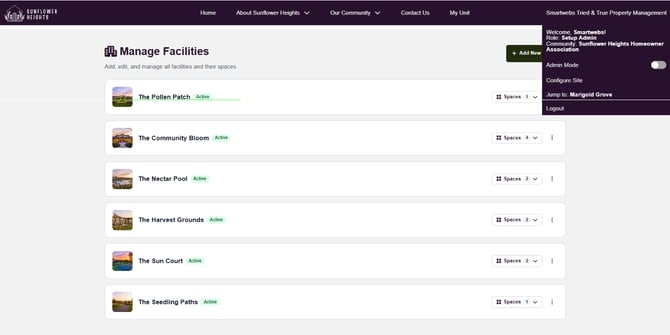
-
Click “Add New Facility”

-
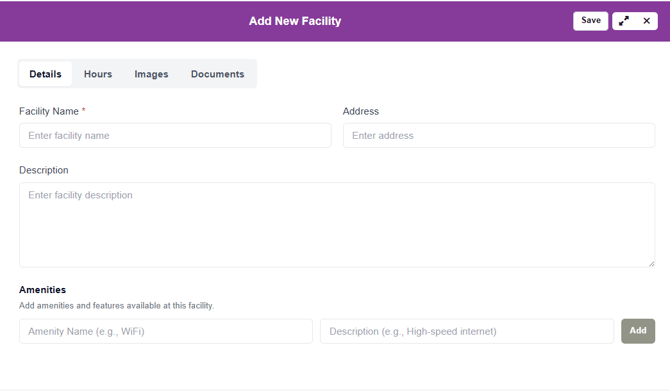
Enter Facility Details
-
Name: Facility name
-
Address: Full location
-
Description: Overview of the facility
-
Add Amenities
-
List available features such as Wi-Fi, Secured access, Shade trees, Restrooms, Parking
-
-
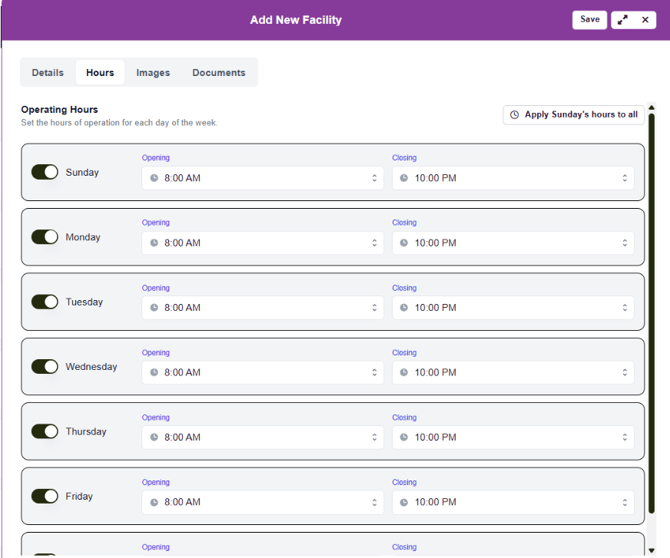
Set Operating Hours: Define the days and hours the facility is open.
-
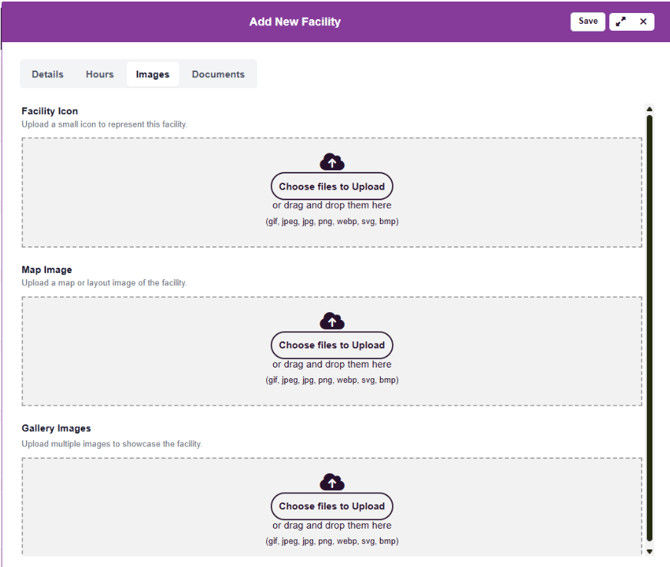
Upload Images
-
Facility Icon: Small representative image
-
Map Image: Layout or directional map
-
Gallery Images: Additional photos
-
-
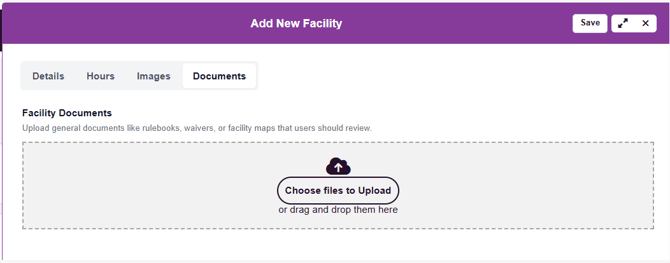
Upload Documents: Attach relevant files such as Waivers, Rules and regulations, Rental agreements
-
Click “Save”
Step 2: Add a Space
Spaces are the individual areas within a facility that can be booked (e.g., tennis courts, rooms, fields).
-
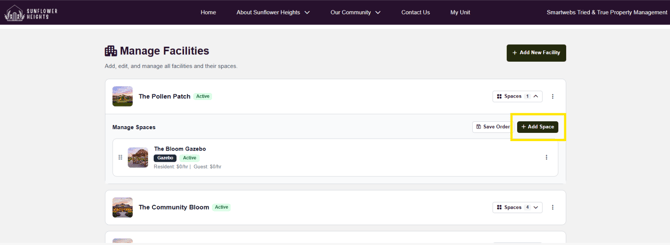
Click “Add New Space”
-
Select the facility, then choose to add a space.
-
-
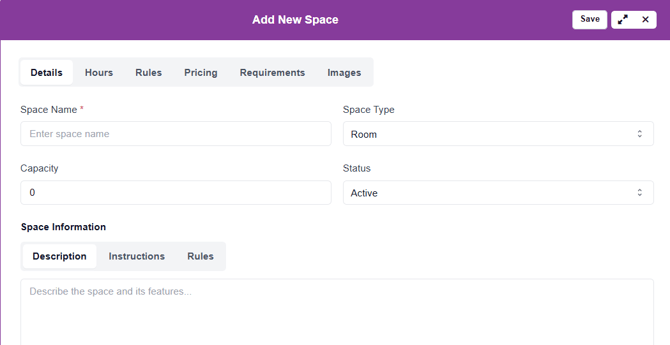
Enter Space Details
-
Name
-
Type (court, room, field, etc.)
-
Capacity
-
Status (active/inactive)
-
Description
-
Instructions
-
Rules
-
-
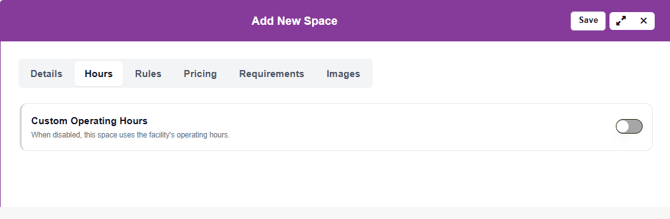
Configure Hours
-
If the space follows facility hours, leave this disabled. Otherwise, define custom availability hours.
-
-
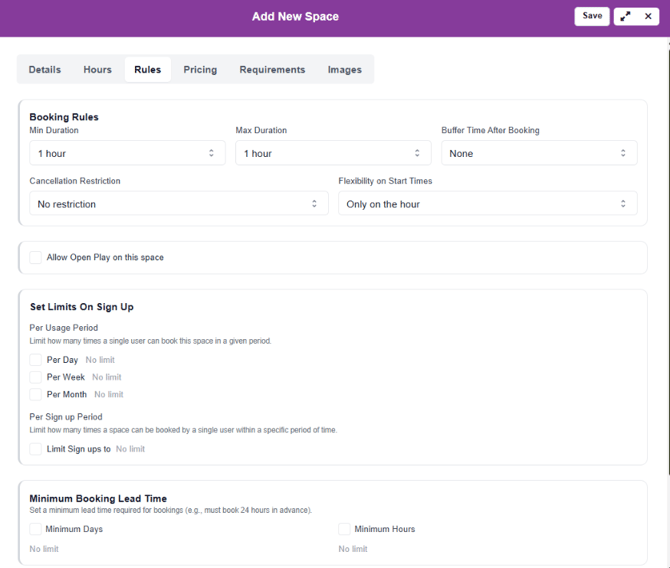
Booking Rules
-
Minimum/Maximum Duration: Set how long a space can be reserved.
-
Buffer Time Between Bookings: Allow time for cleaning or setup.
-
Cancellation Restrictions: Define how far in advance bookings can be canceled.
-
Start Time Flexibility: Control booking start times (e.g., only on the hour).
-
-
Allow Open Play: Enable if reservations are not required.
-
Set Sign-Up Limits
-
Per Usage Period: Limit booking frequency.
-
Per Sign-Up Period: Restrict number of bookings within a timeframe.
-
Minimum Booking Lead Time: Example: Must book at least 24 hours in advance.
-
Maximum Booking Lead Time: Example: Can only book up to 48 hours in advance.
-
-
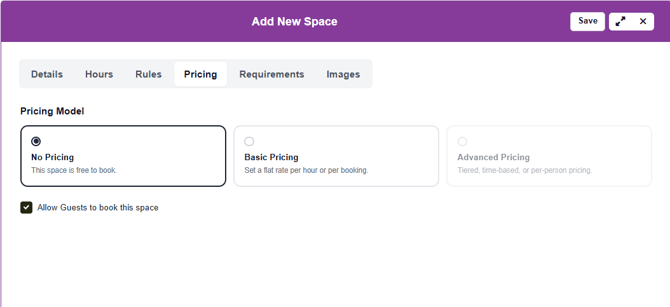
Pricing Options
-
No Pricing: Free to book
-
Basic Pricing: Flat rate per hour or per booking
-
-
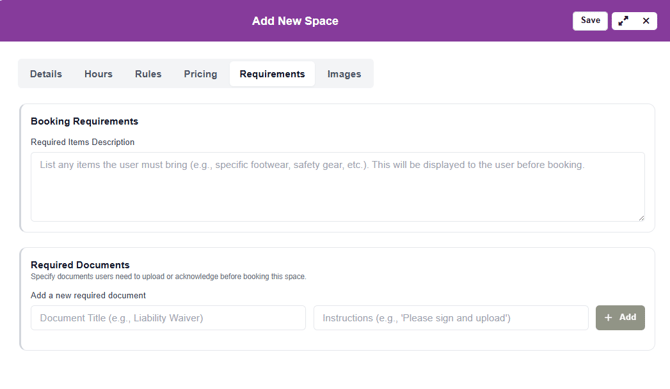
Booking Requirements: Specify what users must bring or complete.
-
Required Documents: Upload required documents such as waivers.
-
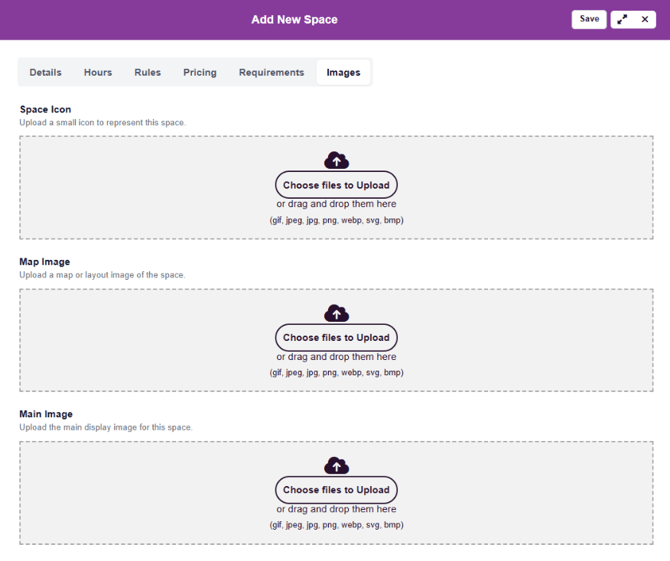
Upload Space Images
-
Click “Save”