
After establishing your menu structure, you must create and link the corresponding pages. This process ensures that your site navigation directs users to the correct content.
1. Access the Page Manager
Navigate to the Pages section where you will find a comprehensive list of all active pages currently managed within your account.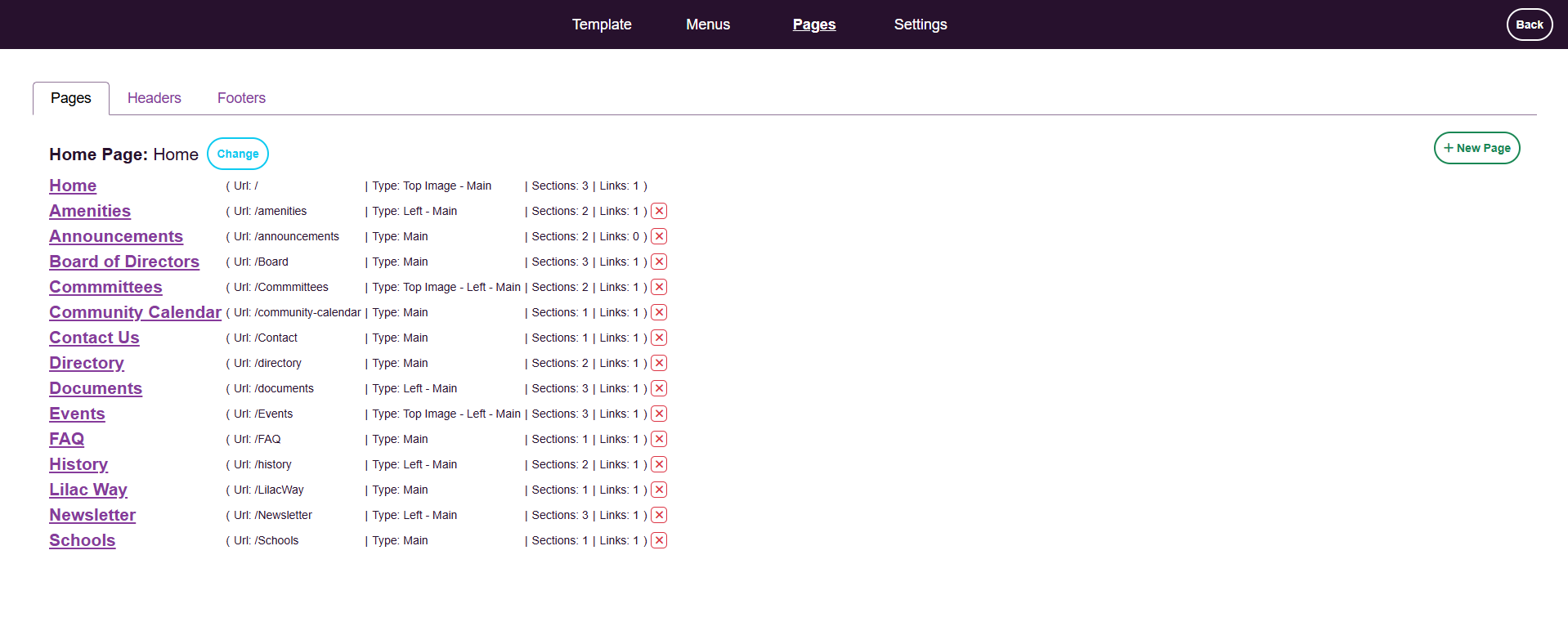
2. Initiate a New Page
To begin, click the New Page button. This will open the page configuration.
3. Configure Page Details
Complete the following fields to define your new page:
- Page Name: Enter the title as you want it to appear. Note: The Page URL will automatically generate based on the title you provide
- Page Type: Select the appropriate layout or functional type from the dropdown menu to match your content needs.
- Menu Association: Use the dropdown to link the page to the specific menu or submenu item you previously created.

4. Build the Page Layout
Use the editor to define the visual and functional structure of your page.
- Header & Footer
- Main Content Area
- Side Content

4. Finalize and Publish
Once the configuration is complete, review your settings for accuracy and click Save. Your new page is now active and accessible via the assigned menu item.
💡 Pro-Tip: Clean Up Your Navigation If you decide to delete a page entirely from your site, remember to also remove its corresponding link from the Menu Configuration area. Deleting a page does not automatically remove it from your header, and taking this extra step ensures your visitors don't encounter broken links.