---
title: User Guide - Configuring Late Fees
description: This guide explains how to configure late fees in Smartwebs Accounting, including both manual and recurring late fee schedules. Proper configuration ensures late fees are assessed automatically based on delinquency criteria defined by the association.
---
[Skip to content](https://solutions.smartwebs.com/en-us/smartwebs-solutions/user-guide-configuring-late-fees-#main-content)
English - United States
Show submenu for translations

- [Smartwebs Solutions Home](https://solutions.smartwebs.com/)
- [Contact Us](https://share.hsforms.com/2VBrljHAiSeCkcUy_-IEe_Aq0yoc)
- [Manage Tickets](https://support.smartwebs.com/tickets-view)
Open main navigation
Close main navigation
- [Smartwebs Solutions Home](https://solutions.smartwebs.com/)
- [Contact Us](https://share.hsforms.com/2VBrljHAiSeCkcUy_-IEe_Aq0yoc)
- [Manage Tickets](https://support.smartwebs.com/tickets-view)
- English - United States
Show submenu for translations
- [Contact Us](https://share.hsforms.com/2VBrljHAiSeCkcUy_-IEe_Aq0yoc)
[Contact Us](https://share.hsforms.com/2VBrljHAiSeCkcUy_-IEe_Aq0yoc)
How can we help you?
- There are no suggestions because the search field is empty.
1. [Smartwebs Solutions](https://solutions.smartwebs.com/en-us/smartwebs-solutions?hsLang=en-us)
2. [Accounting](https://solutions.smartwebs.com/en-us/smartwebs-solutions/accounting?hsLang=en-us)
3. [Collections](https://solutions.smartwebs.com/en-us/smartwebs-solutions/accounting?hsLang=en-us#collections)
July 21, 2026
# User Guide - Configuring Late Fees
## This guide explains how to configure late fees in Smartwebs Accounting, including both manual and recurring late fee schedules. Proper configuration ensures late fees are assessed automatically based on delinquency criteria defined by the association.
### **Required Configuration**
Before configuring the Late Fee Schedule, confirm the following Accounting items are set up:
- **Charge Codes:** Assessment or balance types that can trigger late fees must already exist in Accounting.
- **Delinquency Charge Code:** A charge code designated for the late fee itself must be created and available for selection.
- **Association Policy Alignment:** The late fee structure (amount, percentage, timing) should match the association’s governing documents and collections policy.
Confirming these items in advance helps ensure the late fee schedule applies correctly.
### **1. Accessing Late Fee Setup**
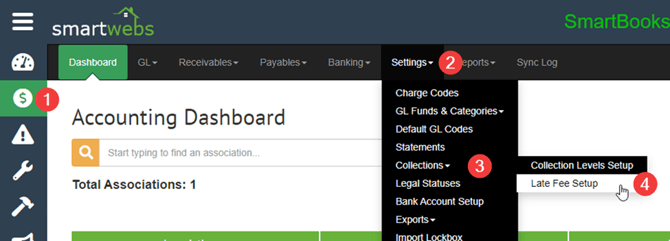
- Select **Accounting**.
- Click **Settings**.
- Select **Collections**.
- Click **Late Fee Setup**.
### **2. Configure the Late Fee Schedule**
Late fees can be assessed **manually** or on a **recurring schedule**.
#### **Option 1: Manual Schedule**
Use this option when late fees will be triggered manually.
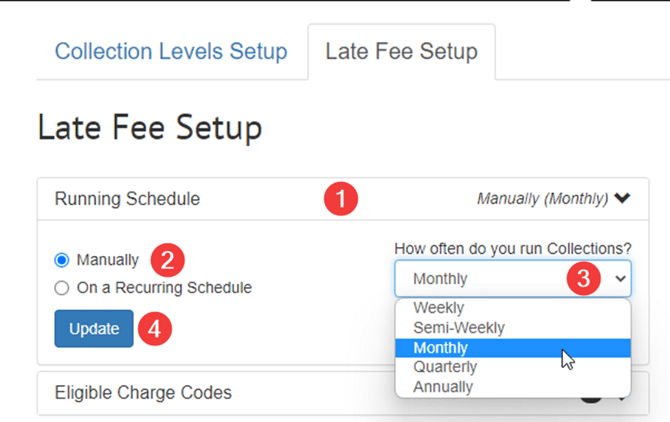
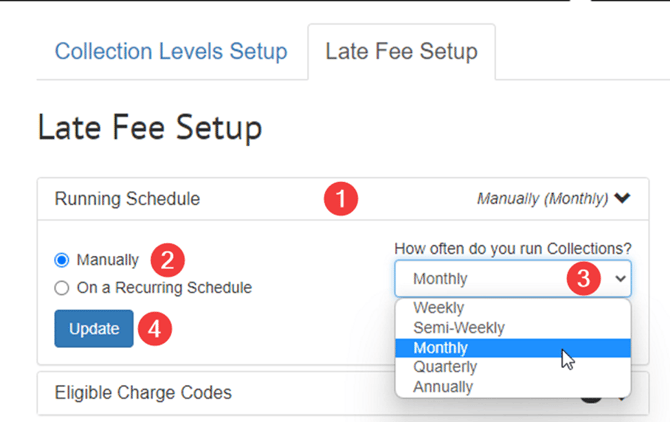
- Click the **Running Schedule** bar.
- Select **Manual**.
- Choose how often the schedule will run from the **drop-down menu**.
- Click **Update**.
****
#### **Option 2: Recurring Schedule**
Use this option to automatically assess late fees on a defined schedule.
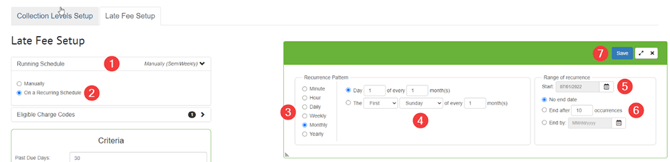
- Click the **Running Schedule** bar.
- Select **On a Recurring Schedule**.
- Choose the **Recurrence Pattern**.
- Select the **Schedule Time Unit**.
- Enter the **Start Date**.
- Select the **End Date option**.
- Click **Save**.
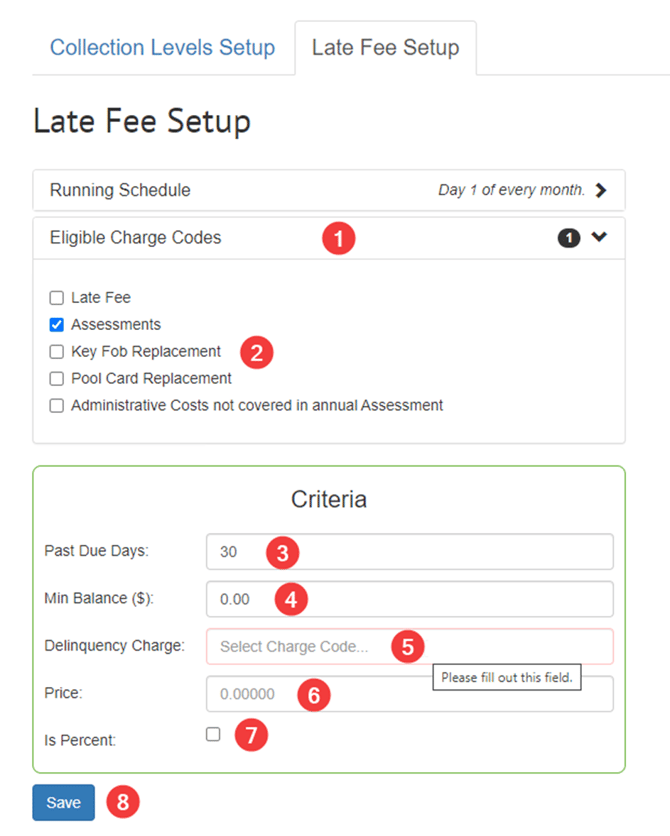
### **3. Configure Late Fee Criteria**
After the schedule is configured, define the conditions under which late fees are applied.
- Click the **Eligible Charge Codes** bar.
- Select the **Eligible Charge Code(s)**.
- Enter the number of **Past Due Days** required before the fee is assessed.
- Enter the **Minimum Balance** required to trigger the late fee.
- Enter the **Delinquency Charge** code that will be applied.
- Enter the **Price** of the late fee.
- Check **Is Percent** if the fee should be calculated as a **percentage of the balance** rather than a fixed dollar amount.
- Click **Save**.
****
### **Best Practices**
- Ensure **eligible charge codes** align with the association’s governing documents and late fee policy.
- Verify the **delinquency charge code** is configured correctly before enabling the schedule.
- Confirm the **Past Due Days** setting matches the association’s collections timeline.
- Test the configuration using a **small sample of delinquent accounts** before applying the schedule across the entire association.
- Review an account ledger after the first run to confirm the late fee posts as expected.
### **FAQ**
#### **Q: *How do I run the Late Fee Schedule manually?***
#### **A: If your schedule is configured as Manual, you must run it when you want late fees assessed.**
1. Navigate to **Accounting**.
2. Select **Collections**.
3. Open **Late Fee Schedule**.
4. Click **Run Schedule**.
5. Review the accounts that meet the criteria.
6. Confirm to apply the late fees.
Late fees will then be posted to qualifying accounts based on the configured criteria.
---
#### **Q: *How can I verify which accounts will receive a late fee before running the schedule?***
#### **A: Before running the schedule, review delinquent accounts to confirm they meet the configured criteria.**
Recommended checks:
- Review the **A/R Aging Report** to identify delinquent balances.
- Confirm accounts meet the **Past Due Days** requirement.
- Verify balances exceed the configured **Minimum Balance** threshold.
- Check that applicable charges match the **Eligible Charge Codes**.
Running these checks helps ensure late fees are applied only to accounts that meet the defined criteria.
###### End of User Guide
- [Accounting](https://solutions.smartwebs.com/en-us/smartwebs-solutions/accounting?hsLang=en-us#main-content)
- [1099's](https://solutions.smartwebs.com/en-us/smartwebs-solutions/accounting?hsLang=en-us#1099s)
- [General](https://solutions.smartwebs.com/en-us/smartwebs-solutions/accounting?hsLang=en-us#general)
- [General Ledger](https://solutions.smartwebs.com/en-us/smartwebs-solutions/accounting?hsLang=en-us#general-ledger)
- [Receivables](https://solutions.smartwebs.com/en-us/smartwebs-solutions/accounting?hsLang=en-us#receivables)
- [Payables](https://solutions.smartwebs.com/en-us/smartwebs-solutions/accounting?hsLang=en-us#payables)
- [Banking & Reconciliation](https://solutions.smartwebs.com/en-us/smartwebs-solutions/accounting?hsLang=en-us#banking-reconciliation)
- [Configuration & Setup](https://solutions.smartwebs.com/en-us/smartwebs-solutions/accounting?hsLang=en-us#configuration-setup)
- [Merchant Services](https://solutions.smartwebs.com/en-us/smartwebs-solutions/accounting?hsLang=en-us#merchant-services)
- [Reports](https://solutions.smartwebs.com/en-us/smartwebs-solutions/accounting?hsLang=en-us#reports)
- [Billing](https://solutions.smartwebs.com/en-us/smartwebs-solutions/accounting?hsLang=en-us#billing)
- [Payments & Deposits](https://solutions.smartwebs.com/en-us/smartwebs-solutions/accounting?hsLang=en-us#payments-deposits)
- [Homeowner Charges](https://solutions.smartwebs.com/en-us/smartwebs-solutions/accounting?hsLang=en-us#homeowner-charges)
- [Statements](https://solutions.smartwebs.com/en-us/smartwebs-solutions/accounting?hsLang=en-us#statements)
- [Collections](https://solutions.smartwebs.com/en-us/smartwebs-solutions/accounting?hsLang=en-us#collections)
- [Security Deposits](https://solutions.smartwebs.com/en-us/smartwebs-solutions/accounting?hsLang=en-us#security-deposits)
- [Administration](https://solutions.smartwebs.com/en-us/smartwebs-solutions/accounting?hsLang=en-us#administration)
- [Administrative](https://solutions.smartwebs.com/en-us/smartwebs-solutions/administrative?hsLang=en-us#main-content)
- [Owner Unit Management](https://solutions.smartwebs.com/en-us/smartwebs-solutions/administrative?hsLang=en-us#owner-unit-management)
- [User Management](https://solutions.smartwebs.com/en-us/smartwebs-solutions/administrative?hsLang=en-us#user-management)
- [Roles and Rights](https://solutions.smartwebs.com/en-us/smartwebs-solutions/administrative?hsLang=en-us#roles-and-rights)
- [Email Notification Preferences](https://solutions.smartwebs.com/en-us/smartwebs-solutions/administrative?hsLang=en-us#email-notification-preferences)
- [Satellite Offices](https://solutions.smartwebs.com/en-us/smartwebs-solutions/administrative?hsLang=en-us#satellite-offices)
- [Reporting](https://solutions.smartwebs.com/en-us/smartwebs-solutions/administrative?hsLang=en-us#reporting)
- [Document Management](https://solutions.smartwebs.com/en-us/smartwebs-solutions/administrative?hsLang=en-us#document-management)
- [Security](https://solutions.smartwebs.com/en-us/smartwebs-solutions/administrative?hsLang=en-us#security)
- [Letter Parameters](https://solutions.smartwebs.com/en-us/smartwebs-solutions/administrative?hsLang=en-us#letter-parameters)
- [Zero Touch Mailing Service](https://solutions.smartwebs.com/en-us/smartwebs-solutions/administrative?hsLang=en-us#zero-touch-mailing-service)
- [Association Setup](https://solutions.smartwebs.com/en-us/smartwebs-solutions/administrative?hsLang=en-us#association-setup)
- [Vendor Management](https://solutions.smartwebs.com/en-us/smartwebs-solutions/administrative?hsLang=en-us#vendor-management)
- [Email and Custom Domains](https://solutions.smartwebs.com/en-us/smartwebs-solutions/administrative?hsLang=en-us#email-and-custom-domains)
- [Data Storage](https://solutions.smartwebs.com/en-us/smartwebs-solutions/administrative?hsLang=en-us#data-storage)
- [Support](https://solutions.smartwebs.com/en-us/smartwebs-solutions/administrative?hsLang=en-us#support)
- [Preferences](https://solutions.smartwebs.com/en-us/smartwebs-solutions/administrative?hsLang=en-us#preferences)
- [HOA and Data Transfers](https://solutions.smartwebs.com/en-us/smartwebs-solutions/administrative?hsLang=en-us#hoa-and-data-transfers)
- [Cancellations](https://solutions.smartwebs.com/en-us/smartwebs-solutions/administrative?hsLang=en-us#cancellations)
- [Architecturals](https://solutions.smartwebs.com/en-us/smartwebs-solutions/architecturals?hsLang=en-us#main-content)
- [Committee Member Guides](https://solutions.smartwebs.com/en-us/smartwebs-solutions/architecturals?hsLang=en-us#committee-member-guides)
- [Board Member Guides](https://solutions.smartwebs.com/en-us/smartwebs-solutions/architecturals?hsLang=en-us#board-member-guides)
- [Online Submit Forms](https://solutions.smartwebs.com/en-us/smartwebs-solutions/architecturals?hsLang=en-us#online-submit-forms)
- [Arc Project Notifications](https://solutions.smartwebs.com/en-us/smartwebs-solutions/architecturals?hsLang=en-us#arc-project-notifications)
- [Arc CCRs and Project Types](https://solutions.smartwebs.com/en-us/smartwebs-solutions/architecturals?hsLang=en-us#arc-ccrs-and-project-types)
- [Arc Project Statuses and Expirations](https://solutions.smartwebs.com/en-us/smartwebs-solutions/architecturals?hsLang=en-us#arc-project-statuses-and-expirations)
- [Arc Letters](https://solutions.smartwebs.com/en-us/smartwebs-solutions/architecturals?hsLang=en-us#arc-letters)
- [Arc Admin, Settings, and Reports](https://solutions.smartwebs.com/en-us/smartwebs-solutions/architecturals?hsLang=en-us#arc-admin-settings-and-reports)
- [Arc Projects](https://solutions.smartwebs.com/en-us/smartwebs-solutions/architecturals?hsLang=en-us#arc-projects)
- [Arc Project Applications](https://solutions.smartwebs.com/en-us/smartwebs-solutions/architecturals?hsLang=en-us#arc-project-applications)
- [Board and Committee Admin](https://solutions.smartwebs.com/en-us/smartwebs-solutions/board-and-committee-admin?hsLang=en-us#main-content)
- [Meeting Minutes](https://solutions.smartwebs.com/en-us/smartwebs-solutions/board-and-committee-admin?hsLang=en-us#meeting-minutes)
- [Communications](https://solutions.smartwebs.com/en-us/smartwebs-solutions/communications?hsLang=en-us#main-content)
- [Mass Communications](https://solutions.smartwebs.com/en-us/smartwebs-solutions/communications?hsLang=en-us#mass-communications)
- [Workflow](https://solutions.smartwebs.com/en-us/smartwebs-solutions/communications?hsLang=en-us#workflow)
- [Security](https://solutions.smartwebs.com/en-us/smartwebs-solutions/communications?hsLang=en-us#security)
- [General](https://solutions.smartwebs.com/en-us/smartwebs-solutions/general?hsLang=en-us#main-content)
- [Frequently Asked Questions](https://solutions.smartwebs.com/en-us/smartwebs-solutions/general?hsLang=en-us#frequently-asked-questions)
- [Lifestyle](https://solutions.smartwebs.com/en-us/smartwebs-solutions/lifestyle?hsLang=en-us)
- [Mobile Applications](https://solutions.smartwebs.com/en-us/smartwebs-solutions/mobile-applications?hsLang=en-us#main-content)
- [Offline App](https://solutions.smartwebs.com/en-us/smartwebs-solutions/mobile-applications?hsLang=en-us#offline-app)
- [Portal App](https://solutions.smartwebs.com/en-us/smartwebs-solutions/mobile-applications?hsLang=en-us#portal-app)
- [Mobile Online App](https://solutions.smartwebs.com/en-us/smartwebs-solutions/mobile-applications?hsLang=en-us#mobile-online-app)
- [iOS Devices](https://solutions.smartwebs.com/en-us/smartwebs-solutions/mobile-applications?hsLang=en-us#ios-devices)
- [Android devices](https://solutions.smartwebs.com/en-us/smartwebs-solutions/mobile-applications?hsLang=en-us#android-devices)
- [FAQ](https://solutions.smartwebs.com/en-us/smartwebs-solutions/mobile-applications?hsLang=en-us#faq)
- [Release Notes](https://solutions.smartwebs.com/en-us/smartwebs-solutions/release-notes?hsLang=en-us#main-content)
- [Office Site Releases](https://solutions.smartwebs.com/en-us/smartwebs-solutions/release-notes?hsLang=en-us#office-site-releases)
- [Application Releases](https://solutions.smartwebs.com/en-us/smartwebs-solutions/release-notes?hsLang=en-us#application-releases)
- [Resident Portal](https://solutions.smartwebs.com/en-us/smartwebs-solutions/resident-portal?hsLang=en-us#main-content)
- [Resident Guides](https://solutions.smartwebs.com/en-us/smartwebs-solutions/resident-portal?hsLang=en-us#resident-guides)
- [Admin Guides](https://solutions.smartwebs.com/en-us/smartwebs-solutions/resident-portal?hsLang=en-us#admin-guides)
- [Violations](https://solutions.smartwebs.com/en-us/smartwebs-solutions/violations?hsLang=en-us#main-content)
- [Frequently Asked Questions](https://solutions.smartwebs.com/en-us/smartwebs-solutions/violations?hsLang=en-us#frequently-asked-questions)
- [Violation Letters](https://solutions.smartwebs.com/en-us/smartwebs-solutions/violations?hsLang=en-us#violation-letters)
- [Violation CCRs](https://solutions.smartwebs.com/en-us/smartwebs-solutions/violations?hsLang=en-us#violation-ccrs)
- [Violation Policies](https://solutions.smartwebs.com/en-us/smartwebs-solutions/violations?hsLang=en-us#violation-policies)
- [Mapping Units in Smartwebs](https://solutions.smartwebs.com/en-us/smartwebs-solutions/violations?hsLang=en-us#mapping-units-in-smartwebs)
- [Setup and Configuration](https://solutions.smartwebs.com/en-us/smartwebs-solutions/violations?hsLang=en-us#setup-and-configuration)
- [Reporting](https://solutions.smartwebs.com/en-us/smartwebs-solutions/violations?hsLang=en-us#reporting)
- [Work Orders](https://solutions.smartwebs.com/en-us/smartwebs-solutions/work-orders?hsLang=en-us#main-content)
- [Work Order Management](https://solutions.smartwebs.com/en-us/smartwebs-solutions/work-orders?hsLang=en-us#work-order-management)
- [Vendor Management](https://solutions.smartwebs.com/en-us/smartwebs-solutions/work-orders?hsLang=en-us#vendor-management)
- [Flyers](https://solutions.smartwebs.com/en-us/smartwebs-solutions/flyers?hsLang=en-us#main-content)
- [Lifestyle](https://solutions.smartwebs.com/en-us/smartwebs-solutions/flyers?hsLang=en-us#lifestyle)
- [Resale](https://solutions.smartwebs.com/en-us/smartwebs-solutions/resale?hsLang=en-us)
# Smartwebs
1015 S Mays St, Round Rock, TX 78664
[512-218-9996](tel:512-218-9996)
[mailto:support@smartwebs.com](mailto:support@smartwebs.com)
Copyright © 2026, Smartwebs