
Overview
Looking to customize and persist your Accounting grid columns for a cleaner, user-specific view?
Users can control which columns display in the Accounting Owner/Unit grid by updating their Preferences.
- Changes are user-specific
- Changes apply at the management (association) level
- Preferences persist across sessions for the same user within the same association
- Each user must configure their own column preferences (e.g., to remove the Tenant column)
How to Save Column Preferences
Follow these steps to update your grid view:
- Navigate to:
Profile Icon → User Settings → Preferences - Select the General tab and Save the Columns to Include in your default view
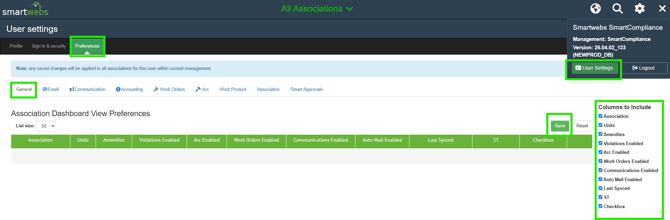
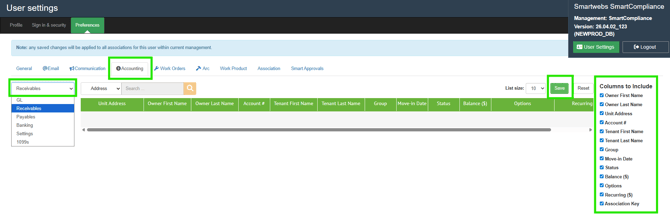
3. Select the Accounting tab and choose Receivables from the dropdown
-
- Check any columns not selected that you want to display
- Uncheck any columns selected that you do not want displayed
- Click Save
How These Settings Apply
- Saved preferences apply to the Homeowners (Owner) grid
- The same column settings will also apply to the Units grid when the Accounting View toggle is ON
- Preferences remain in place after logout/login for the same user within the same association
Important Notes
- Column preferences are not shared across users
- Each user must individually configure their own view
- This is commonly used to add/remove columns such as Tenant or other non-essential fields
Bulk Updates for Multiple Users
If you need to apply the same column preferences for multiple users (e.g., board members):
- Submit a support ticket with:
- Names, usernames, or email addresses of the users
- Smartwebs Support can update these preferences on your behalf for a one-time General Professional Services Fee ($100)