
Yes, you can easily direct visitors to an external website by configuring a menu item as an external link. This is a great way to connect your audience to partner sites, social media, or third-party resources.
Follow these steps to configure your external link:
Step 1: Access Menu Settings
- Navigate to the Configuration area within the Lifestyle platform.
- Select Menus from the top header.
Step 2: Create the Menu Item
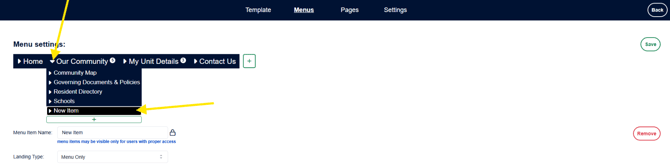
- Identify where you want the link to appear (e.g., under the "Our Community" header).
- Click the arrow next to the parent category to expand it, then click the + (plus) button to add a new item.
- In the Menu Item Name field, enter the label you want visitors to see (e.g., "Resources").
Step 3: Set Visibility & Permissions
Use the Lock icon to manage who can see this link:
- Unlocked: The link is visible to the general public.
- Locked: The link is restricted to users with specific access permissions.
- Locked with "A": The link is visible only to site administrators.
Step 4: Configure the External Link
- Locate the Landing Type dropdown menu and select External Link.
- A new field will appear; enter the full URL of the destination website here.
- Click Save to publish your changes.
