---
title: User Guide - How to Create Owner & Unit Custom Fields
description: "Creating a Custom Field\nNavigate to Manage → Association → Owner/Unit Custom Fields.\n\nClick New.\nEnter a Group Name.\nWe recommend something like Additional Details, but you can name it whatever makes sense for your association.\nChoose whether the group should be:\nOwner-Based – The information is tied to the homeowner and will change when ownership changes.\nUnit-Based – The information stays with the property, even when ownership changes.\n\n\nClick New to create your first custom field.\nEnter a Name for the field.\n\n\nSelect the Type of field you'd like to use, such as:\nText field\nRadio buttons\nDate picker\n(Or another available option)\n\n\nIf you'd like this field to appear on the Owner List grid, check the Show on Owner Grid option.\nClick Save.\nViewing Your Custom Field\n\nTo view the custom field:\n\nNavigate to Communication → Owner List.\nIf you enabled Show on Owner Grid, the field will appear as a column in the Owner List.\nIf you did not enable that option, simply open an individual homeowner's record to view and update the custom field information.\n\n\nTip: Use owner-based fields for information that belongs to the homeowner (such as emergency contacts), and unit-based fields for information that should remain with the property (such as gate codes or utility information)."
---
[Skip to content](https://solutions.smartwebs.com/en-us/smartwebs-solutions/how-to-create-owner-unit-custom-fields#main-content)
English - United States
Show submenu for translations
- [Smartwebs Solutions Home](https://solutions.smartwebs.com/)
- [Contact Us](https://share.hsforms.com/2VBrljHAiSeCkcUy_-IEe_Aq0yoc)
- [Manage Tickets](https://support.smartwebs.com/tickets-view)
Open main navigation
Close main navigation
- [Smartwebs Solutions Home](https://solutions.smartwebs.com/)
- [Contact Us](https://share.hsforms.com/2VBrljHAiSeCkcUy_-IEe_Aq0yoc)
- [Manage Tickets](https://support.smartwebs.com/tickets-view)
- English - United States
Show submenu for translations
- [Contact Us](https://share.hsforms.com/2VBrljHAiSeCkcUy_-IEe_Aq0yoc)
[Contact Us](https://share.hsforms.com/2VBrljHAiSeCkcUy_-IEe_Aq0yoc)
How can we help you?
- There are no suggestions because the search field is empty.
1. [Smartwebs Solutions](https://solutions.smartwebs.com/en-us/smartwebs-solutions?hsLang=en-us)
2. [Administrative](https://solutions.smartwebs.com/en-us/smartwebs-solutions/administrative?hsLang=en-us)
3. [Owner Unit Management](https://solutions.smartwebs.com/en-us/smartwebs-solutions/administrative?hsLang=en-us#owner-unit-management)
August 18, 2026
# User Guide - How to Create Owner & Unit Custom Fields
## Need to track additional information for your homeowners or units? Custom fields let you store extra details that are specific to your association.
**Creating a Custom Field**
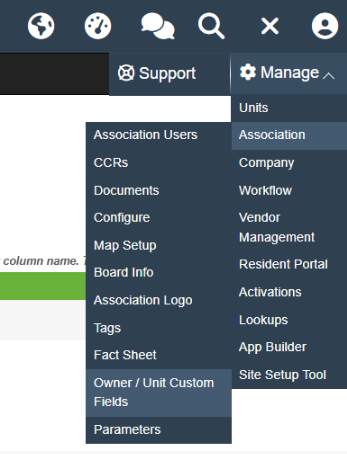
1. Navigate to **Manage** → **Association** → **Owner/Unit Custom Fields**.
2. Click **New**.
3. Enter a **Group Name**.
4. We recommend something like **Additional Details**, but you can name it whatever makes sense for your association.
5. Choose whether the group should be:
6. **Owner-Based** – The information is tied to the homeowner and will change when ownership changes.
7. **Unit-Based** – The information stays with the property, even when ownership changes.
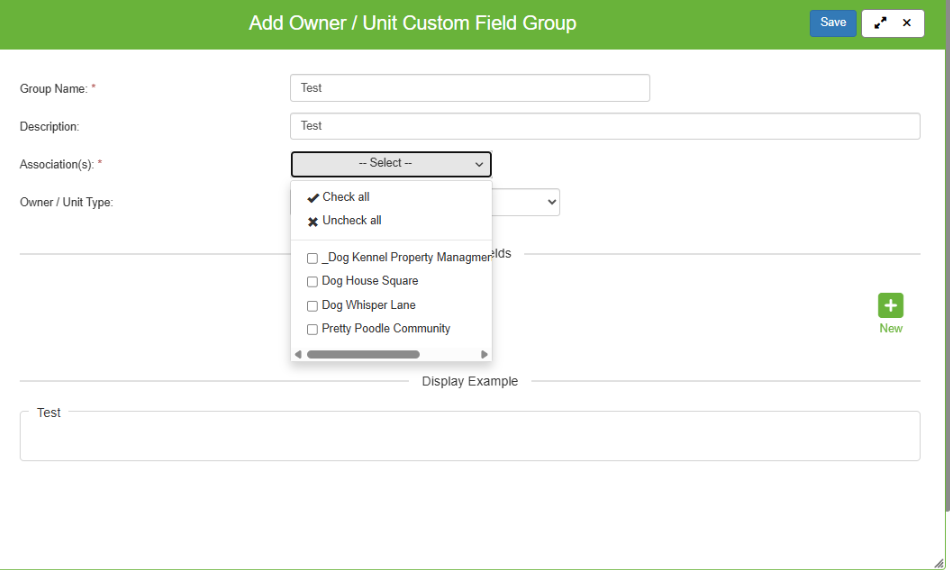
8. Click **New** to create your first custom field.
9. Enter a **Name** for the field.
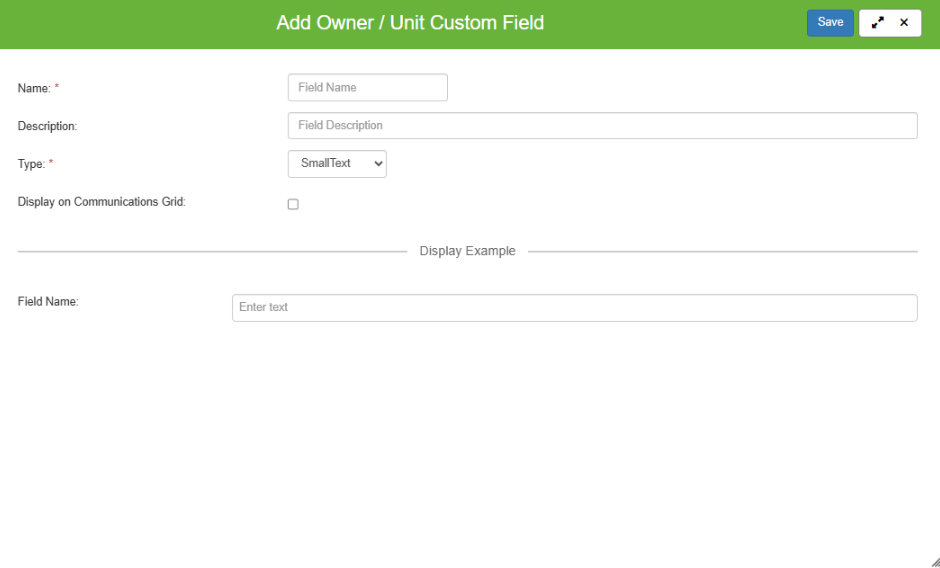
10. Select the **Type** of field you'd like to use, such as:
11. Text field
12. Radio buttons
13. Date picker
14. (Or another available option)
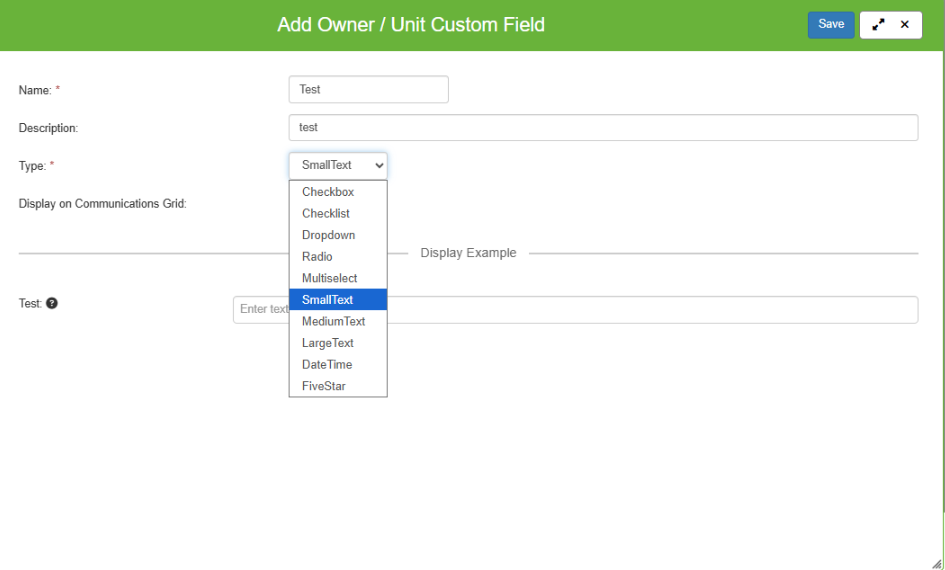
15. If you'd like this field to appear on the **Owner List** grid, check the **Show on Owner Grid** option.
16. Click **Save**.
**Viewing Your Custom Field**
To view the custom field:
1. Navigate to **Communication** → **Owner List**.
2. If you enabled **Show on Owner Grid**, the field will appear as a column in the Owner List.
3. If you did not enable that option, simply open an individual homeowner's record to view and update the custom field information.
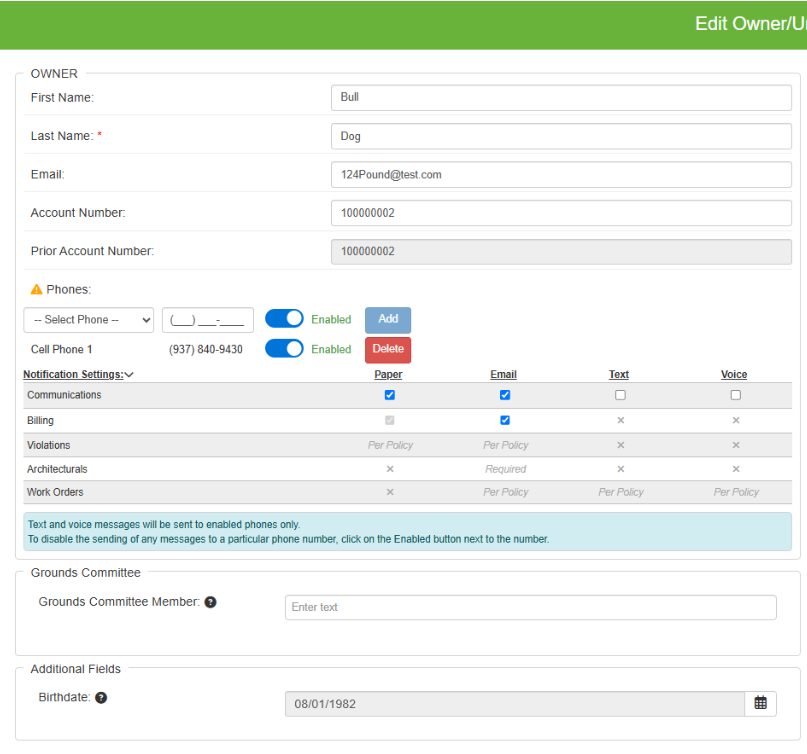
> **Tip:** Use owner-based fields for information that belongs to the homeowner (such as emergency contacts), and unit-based fields for information that should remain with the property (such as gate codes or utility information).
- [Accounting](https://solutions.smartwebs.com/en-us/smartwebs-solutions/accounting?hsLang=en-us#main-content)
- [1099's](https://solutions.smartwebs.com/en-us/smartwebs-solutions/accounting?hsLang=en-us#1099s)
- [General](https://solutions.smartwebs.com/en-us/smartwebs-solutions/accounting?hsLang=en-us#general)
- [General Ledger](https://solutions.smartwebs.com/en-us/smartwebs-solutions/accounting?hsLang=en-us#general-ledger)
- [Receivables](https://solutions.smartwebs.com/en-us/smartwebs-solutions/accounting?hsLang=en-us#receivables)
- [Payables](https://solutions.smartwebs.com/en-us/smartwebs-solutions/accounting?hsLang=en-us#payables)
- [Banking & Reconciliation](https://solutions.smartwebs.com/en-us/smartwebs-solutions/accounting?hsLang=en-us#banking-reconciliation)
- [Configuration & Setup](https://solutions.smartwebs.com/en-us/smartwebs-solutions/accounting?hsLang=en-us#configuration-setup)
- [Merchant Services](https://solutions.smartwebs.com/en-us/smartwebs-solutions/accounting?hsLang=en-us#merchant-services)
- [Reports](https://solutions.smartwebs.com/en-us/smartwebs-solutions/accounting?hsLang=en-us#reports)
- [Billing](https://solutions.smartwebs.com/en-us/smartwebs-solutions/accounting?hsLang=en-us#billing)
- [Payments & Deposits](https://solutions.smartwebs.com/en-us/smartwebs-solutions/accounting?hsLang=en-us#payments-deposits)
- [Homeowner Charges](https://solutions.smartwebs.com/en-us/smartwebs-solutions/accounting?hsLang=en-us#homeowner-charges)
- [Statements](https://solutions.smartwebs.com/en-us/smartwebs-solutions/accounting?hsLang=en-us#statements)
- [Collections](https://solutions.smartwebs.com/en-us/smartwebs-solutions/accounting?hsLang=en-us#collections)
- [Security Deposits](https://solutions.smartwebs.com/en-us/smartwebs-solutions/accounting?hsLang=en-us#security-deposits)
- [Administration](https://solutions.smartwebs.com/en-us/smartwebs-solutions/accounting?hsLang=en-us#administration)
- [Administrative](https://solutions.smartwebs.com/en-us/smartwebs-solutions/administrative?hsLang=en-us#main-content)
- [Owner Unit Management](https://solutions.smartwebs.com/en-us/smartwebs-solutions/administrative?hsLang=en-us#owner-unit-management)
- [User Management](https://solutions.smartwebs.com/en-us/smartwebs-solutions/administrative?hsLang=en-us#user-management)
- [Roles and Rights](https://solutions.smartwebs.com/en-us/smartwebs-solutions/administrative?hsLang=en-us#roles-and-rights)
- [Email Notification Preferences](https://solutions.smartwebs.com/en-us/smartwebs-solutions/administrative?hsLang=en-us#email-notification-preferences)
- [Satellite Offices](https://solutions.smartwebs.com/en-us/smartwebs-solutions/administrative?hsLang=en-us#satellite-offices)
- [Reporting](https://solutions.smartwebs.com/en-us/smartwebs-solutions/administrative?hsLang=en-us#reporting)
- [Document Management](https://solutions.smartwebs.com/en-us/smartwebs-solutions/administrative?hsLang=en-us#document-management)
- [Security](https://solutions.smartwebs.com/en-us/smartwebs-solutions/administrative?hsLang=en-us#security)
- [Letter Parameters](https://solutions.smartwebs.com/en-us/smartwebs-solutions/administrative?hsLang=en-us#letter-parameters)
- [Zero Touch Mailing Service](https://solutions.smartwebs.com/en-us/smartwebs-solutions/administrative?hsLang=en-us#zero-touch-mailing-service)
- [Association Setup](https://solutions.smartwebs.com/en-us/smartwebs-solutions/administrative?hsLang=en-us#association-setup)
- [Vendor Management](https://solutions.smartwebs.com/en-us/smartwebs-solutions/administrative?hsLang=en-us#vendor-management)
- [Email and Custom Domains](https://solutions.smartwebs.com/en-us/smartwebs-solutions/administrative?hsLang=en-us#email-and-custom-domains)
- [Data Storage](https://solutions.smartwebs.com/en-us/smartwebs-solutions/administrative?hsLang=en-us#data-storage)
- [Support](https://solutions.smartwebs.com/en-us/smartwebs-solutions/administrative?hsLang=en-us#support)
- [Preferences](https://solutions.smartwebs.com/en-us/smartwebs-solutions/administrative?hsLang=en-us#preferences)
- [HOA and Data Transfers](https://solutions.smartwebs.com/en-us/smartwebs-solutions/administrative?hsLang=en-us#hoa-and-data-transfers)
- [Architecturals](https://solutions.smartwebs.com/en-us/smartwebs-solutions/architecturals?hsLang=en-us#main-content)
- [Committee Member Guides](https://solutions.smartwebs.com/en-us/smartwebs-solutions/architecturals?hsLang=en-us#committee-member-guides)
- [Board Member Guides](https://solutions.smartwebs.com/en-us/smartwebs-solutions/architecturals?hsLang=en-us#board-member-guides)
- [Online Submit Forms](https://solutions.smartwebs.com/en-us/smartwebs-solutions/architecturals?hsLang=en-us#online-submit-forms)
- [Arc Project Notifications](https://solutions.smartwebs.com/en-us/smartwebs-solutions/architecturals?hsLang=en-us#arc-project-notifications)
- [Arc CCRs and Project Types](https://solutions.smartwebs.com/en-us/smartwebs-solutions/architecturals?hsLang=en-us#arc-ccrs-and-project-types)
- [Arc Project Statuses and Expirations](https://solutions.smartwebs.com/en-us/smartwebs-solutions/architecturals?hsLang=en-us#arc-project-statuses-and-expirations)
- [Arc Letters](https://solutions.smartwebs.com/en-us/smartwebs-solutions/architecturals?hsLang=en-us#arc-letters)
- [Arc Admin, Settings, and Reports](https://solutions.smartwebs.com/en-us/smartwebs-solutions/architecturals?hsLang=en-us#arc-admin-settings-and-reports)
- [Arc Projects](https://solutions.smartwebs.com/en-us/smartwebs-solutions/architecturals?hsLang=en-us#arc-projects)
- [Arc Project Applications](https://solutions.smartwebs.com/en-us/smartwebs-solutions/architecturals?hsLang=en-us#arc-project-applications)
- [Board and Committee Admin](https://solutions.smartwebs.com/en-us/smartwebs-solutions/board-and-committee-admin?hsLang=en-us#main-content)
- [Meeting Minutes](https://solutions.smartwebs.com/en-us/smartwebs-solutions/board-and-committee-admin?hsLang=en-us#meeting-minutes)
- [Communications](https://solutions.smartwebs.com/en-us/smartwebs-solutions/communications?hsLang=en-us#main-content)
- [Mass Communications](https://solutions.smartwebs.com/en-us/smartwebs-solutions/communications?hsLang=en-us#mass-communications)
- [Workflow](https://solutions.smartwebs.com/en-us/smartwebs-solutions/communications?hsLang=en-us#workflow)
- [Security](https://solutions.smartwebs.com/en-us/smartwebs-solutions/communications?hsLang=en-us#security)
- [General](https://solutions.smartwebs.com/en-us/smartwebs-solutions/general?hsLang=en-us#main-content)
- [Frequently Asked Questions](https://solutions.smartwebs.com/en-us/smartwebs-solutions/general?hsLang=en-us#frequently-asked-questions)
- [Lifestyle](https://solutions.smartwebs.com/en-us/smartwebs-solutions/lifestyle?hsLang=en-us)
- [Mobile Applications](https://solutions.smartwebs.com/en-us/smartwebs-solutions/mobile-applications?hsLang=en-us#main-content)
- [Offline App](https://solutions.smartwebs.com/en-us/smartwebs-solutions/mobile-applications?hsLang=en-us#offline-app)
- [Portal App](https://solutions.smartwebs.com/en-us/smartwebs-solutions/mobile-applications?hsLang=en-us#portal-app)
- [Mobile Online App](https://solutions.smartwebs.com/en-us/smartwebs-solutions/mobile-applications?hsLang=en-us#mobile-online-app)
- [iOS Devices](https://solutions.smartwebs.com/en-us/smartwebs-solutions/mobile-applications?hsLang=en-us#ios-devices)
- [Android devices](https://solutions.smartwebs.com/en-us/smartwebs-solutions/mobile-applications?hsLang=en-us#android-devices)
- [FAQ](https://solutions.smartwebs.com/en-us/smartwebs-solutions/mobile-applications?hsLang=en-us#faq)
- [Release Notes](https://solutions.smartwebs.com/en-us/smartwebs-solutions/release-notes?hsLang=en-us#main-content)
- [Office Site Releases](https://solutions.smartwebs.com/en-us/smartwebs-solutions/release-notes?hsLang=en-us#office-site-releases)
- [Application Releases](https://solutions.smartwebs.com/en-us/smartwebs-solutions/release-notes?hsLang=en-us#application-releases)
- [Resident Portal](https://solutions.smartwebs.com/en-us/smartwebs-solutions/resident-portal?hsLang=en-us#main-content)
- [Resident Guides](https://solutions.smartwebs.com/en-us/smartwebs-solutions/resident-portal?hsLang=en-us#resident-guides)
- [Admin Guides](https://solutions.smartwebs.com/en-us/smartwebs-solutions/resident-portal?hsLang=en-us#admin-guides)
- [Violations](https://solutions.smartwebs.com/en-us/smartwebs-solutions/violations?hsLang=en-us#main-content)
- [Frequently Asked Questions](https://solutions.smartwebs.com/en-us/smartwebs-solutions/violations?hsLang=en-us#frequently-asked-questions)
- [Violation Letters](https://solutions.smartwebs.com/en-us/smartwebs-solutions/violations?hsLang=en-us#violation-letters)
- [Violation CCRs](https://solutions.smartwebs.com/en-us/smartwebs-solutions/violations?hsLang=en-us#violation-ccrs)
- [Violation Policies](https://solutions.smartwebs.com/en-us/smartwebs-solutions/violations?hsLang=en-us#violation-policies)
- [Mapping Units in Smartwebs](https://solutions.smartwebs.com/en-us/smartwebs-solutions/violations?hsLang=en-us#mapping-units-in-smartwebs)
- [Setup and Configuration](https://solutions.smartwebs.com/en-us/smartwebs-solutions/violations?hsLang=en-us#setup-and-configuration)
- [Reporting](https://solutions.smartwebs.com/en-us/smartwebs-solutions/violations?hsLang=en-us#reporting)
- [Work Orders](https://solutions.smartwebs.com/en-us/smartwebs-solutions/work-orders?hsLang=en-us#main-content)
- [Work Order Management](https://solutions.smartwebs.com/en-us/smartwebs-solutions/work-orders?hsLang=en-us#work-order-management)
- [Vendor Management](https://solutions.smartwebs.com/en-us/smartwebs-solutions/work-orders?hsLang=en-us#vendor-management)
- [Flyers](https://solutions.smartwebs.com/en-us/smartwebs-solutions/flyers?hsLang=en-us#main-content)
- [Lifestyle](https://solutions.smartwebs.com/en-us/smartwebs-solutions/flyers?hsLang=en-us#lifestyle)
- [Resale](https://solutions.smartwebs.com/en-us/smartwebs-solutions/resale?hsLang=en-us)
# Smartwebs
1015 S Mays St, Round Rock, TX 78664
[512-218-9996](tel:512-218-9996)
[mailto:support@smartwebs.com](mailto:support@smartwebs.com)
Copyright © 2026, Smartwebs